Novel writing software for Mac – write on real pages, hand over a perfect manuscript
In Goethe Write you write your book on pages with real margins, see left and right page side by side, and export exactly the manuscript agents, publishers and editors ask for.


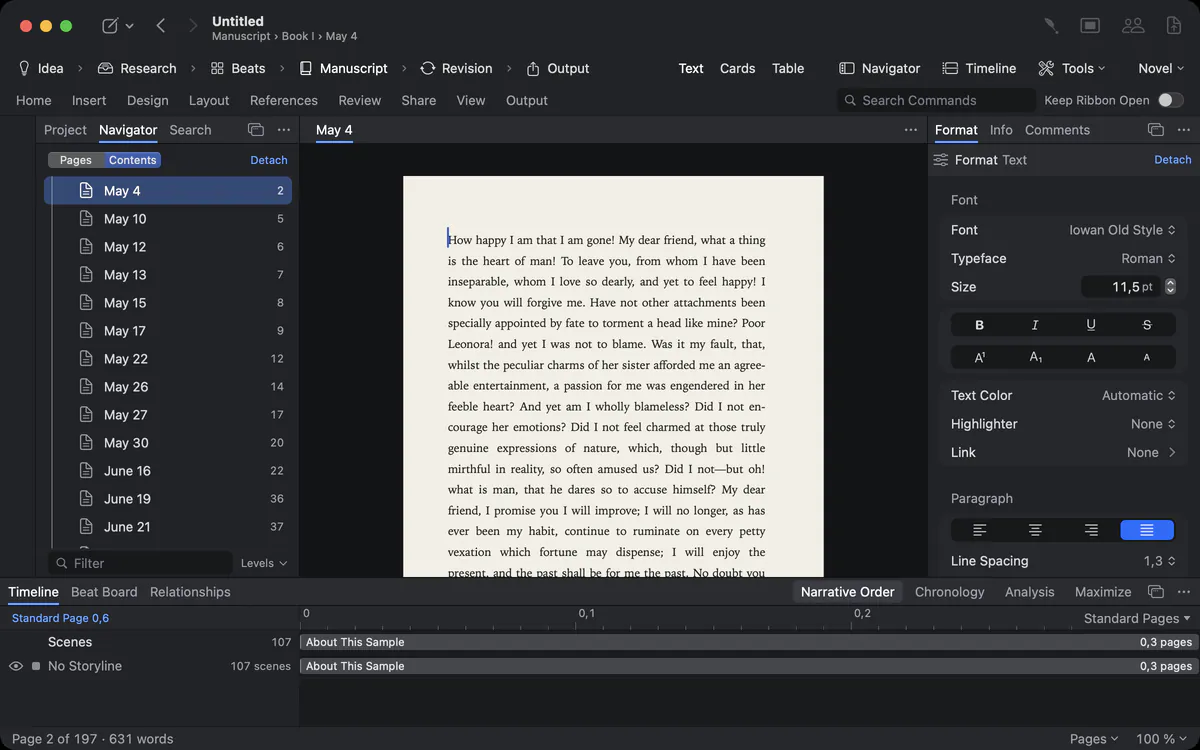
One long document is the wrong shape for a book
Chapter 23 is somewhere in a file of 400 pages. Moving it means cut, scroll, scroll, paste – and hoping nothing got lost.
A novel is not one stream of text. It is parts, chapters and scenes that you write in a different order than the reader reads them, move around, split and merge. A single word-processor document makes every structural change risky and slow.
How Goethe Write solves it
- Every chapter or scene is a text of its own in the sidebar, grouped in folders for parts and chapters.
- Click a folder, and the manuscript shows all its texts as one continuous text – you read it as a whole, you edit it in pieces.
- Drag a text in the sidebar or in the navigator, and the manuscript follows. Merge and Split sit in the context menu of the sidebar.
- Each text has a status (idea, draft, revised, done), a label colour, a synopsis and its own word target.
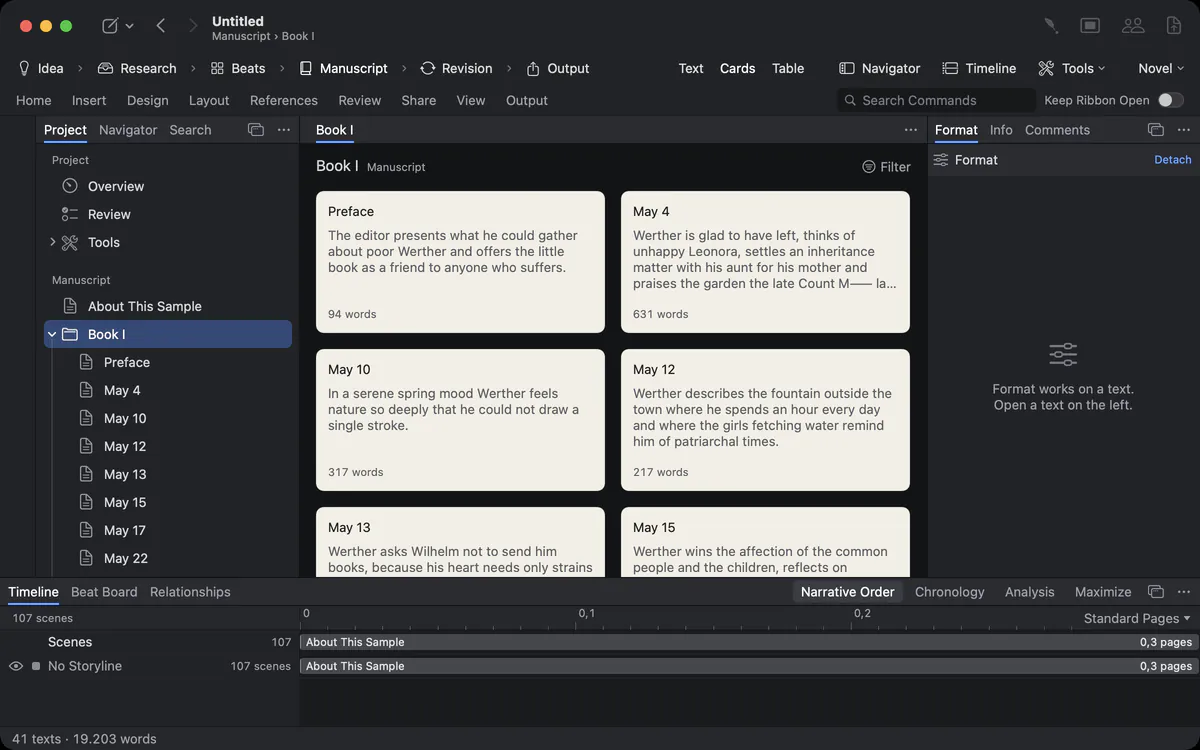
The whole structure is also there as cards and as a table, and in the outline and Beat Board. Nothing is kept twice: a card is the text.
Write on the page the reader will hold
You only find out at the end that the chapter opener lands on a left page, the running heads are wrong and the footnotes break badly.
Goethe Write has two ways of showing the text. Draft is a calm column for writing. Pages shows the text on real pages with paper, margins, header, footer and footnotes – the same pages that the PDF, the print and the Word file get. Switch between them in the View tab.
How Goethe Write solves it
- In the View tab, choose Pages.
- Choose Two Pages: as soon as the window is wide enough, left and right page stand side by side, as in the open book.
- Set paper, margins, mirrored margins and binding allowance under Layout ▸ Page Setup… – for a paperback of 12 × 19 cm, for example.
- Headers and footers can differ on the first page and on left and right pages; page numbers, title and chapter go in with a click.
Styles instead of manual formatting
Three hundred headings, each formatted by hand – and the publisher wants a different font for all of them.
Goethe Write works with paragraph and character styles, as professional publishing does. A chapter heading is a chapter heading because of its style, not because of its font. Change the style once in Edit Styles…, and every paragraph that uses it follows – on screen, in the PDF, in Word and in the e-book. The styles carry names that fit the type of work: in a novel Part, Chapter and Scene; in a legal brief the levels of legal numbering.
The ribbon’s Home tab has the style gallery with fixed places; the Format inspector beside the text shows the settings of whatever you select. Footnotes stay with their text on screen, in the PDF and in Word. Tables and pictures sit in the text and can be sized right on the page. For finer typography – small caps, character spacing, ligatures, keep with next – see typesetting.
A manuscript the way agents and publishers want it
The agency’s guidelines say: 12-point type, double-spaced, one-inch margins, name and title in the header. In German publishing it is the Normseite with 30 lines of 60 characters. You would rather write than reformat.
Choose File ▸ Export… and the format the result is for. Goethe Write sets the pages for it without changing your project:
You can save your own formats too, for a publisher’s house style. The project itself stays as you like to write it. More in the guides to standard manuscript format and the Normseite.
Targets that keep the book moving
You know the book needs 90,000 words by spring. You don’t know whether today counted.
Set a manuscript target with a deadline and your writing days, and Goethe Write works out the daily target. The status bar shows the day’s progress quietly; the history shows what you wrote day by day. A single text can have its own target, for a chapter of 4,000 words. Everything is in Project ▸ Targets…, and the focus tools keep the screen quiet while you write.
Nothing lost, ever
You rewrote a chapter last week and now want the old ending back.
Goethe Write saves as you write. Snapshots keep one text as it is now, with a name, and let you compare two snapshots word by word. Before steps that rebuild a text (accepting all changes, a replace in the whole project), Goethe Write takes a snapshot by itself. On top of that, it backs up the whole project automatically and, if you like, to a second location. The project is a file in an open format that you own.
Comments and changes from your editor
Your editor’s comments and tracked changes come in with a Word file, and you accept or reject them in Goethe Write like your own. When the manuscript goes back to Word, comments and changes go along with person and date.
Questions about novels and manuscripts
Can I see two pages side by side like a printed book?
Yes. In the View tab, choose Pages and then Two Pages. As soon as the window is wide enough, left and right page stand side by side.
Does Goethe Write export a standard manuscript for agents?
Yes. The Standard Manuscript output sets 12-point type, double spacing, one-inch margins and your name, title and page number in the header. For German projects the same output sets the Normseite.
Can I import my novel from Word or Scrivener?
Yes. Word files come in with headings, footnotes, comments and tracked changes; Scrivener 2 and 3 projects with their binder, synopses, notes, labels and status. A finished work in one file can be split into chapters by Import Work.
Is my book stored in the cloud?
No. Your project is a file on your Mac. Goethe Write backs it up on your Mac and, if you choose, to a second location you pick.
In the handbook
- Writing: text, formatting, paragraphsWrite and format text in Goethe Write: views, fonts, paragraphs, lists, styles, breaks, tables, pictures, links, spelling, find and replace across the project.
- Page setup, design, printingSet up the page in Goethe Write: paper, margins, header, footer and page numbers, page templates, a watermark, the Design Studio for covers, and printing.
- Output and exportExport a work as PDF, Word, EPUB, Markdown or RTF, a screenplay as Final Draft, Fountain or PDF; choose the look, scope and contents, and import Word files.
Write the book. See the book.
Try Goethe Write free for 14 days on your Mac. The handbook explains every step.
Try it free for 14 days on your MacRead the chapter on writingSee pricing