





Goethe Write
EN

See Goethe Write.

Every picture on this page is a real screenshot of the Mac app, and every clip shows the app itself. The samples are Goethe’s own works: Faust as a screenplay, Werther as a novel, his poems and his journey to Italy.

Download on the Mac App StoreMac · 14 days freeDownload on the App StoreiPhone and iPad · free

Try 14 days freeSee pricing

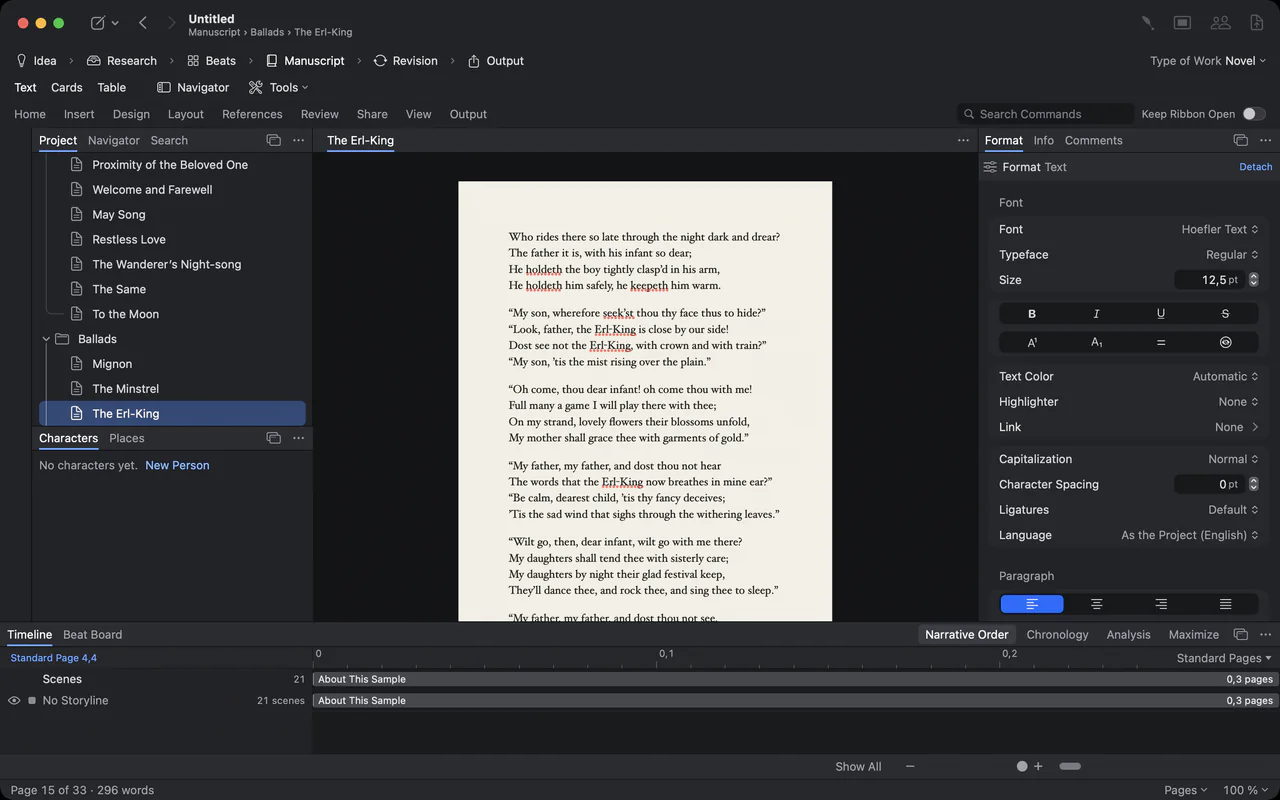
Goethe’s ballad The Erl-King set on a manuscript page, with the poems listed on the left

A screenplay in industry format.

Scene headings, action, characters, dialogue and transitions sit where Final Draft puts them. Return and Tab move from element to element as you type, and Goethe Write opens and saves Final Draft (.fdx) and Fountain files.

More about it

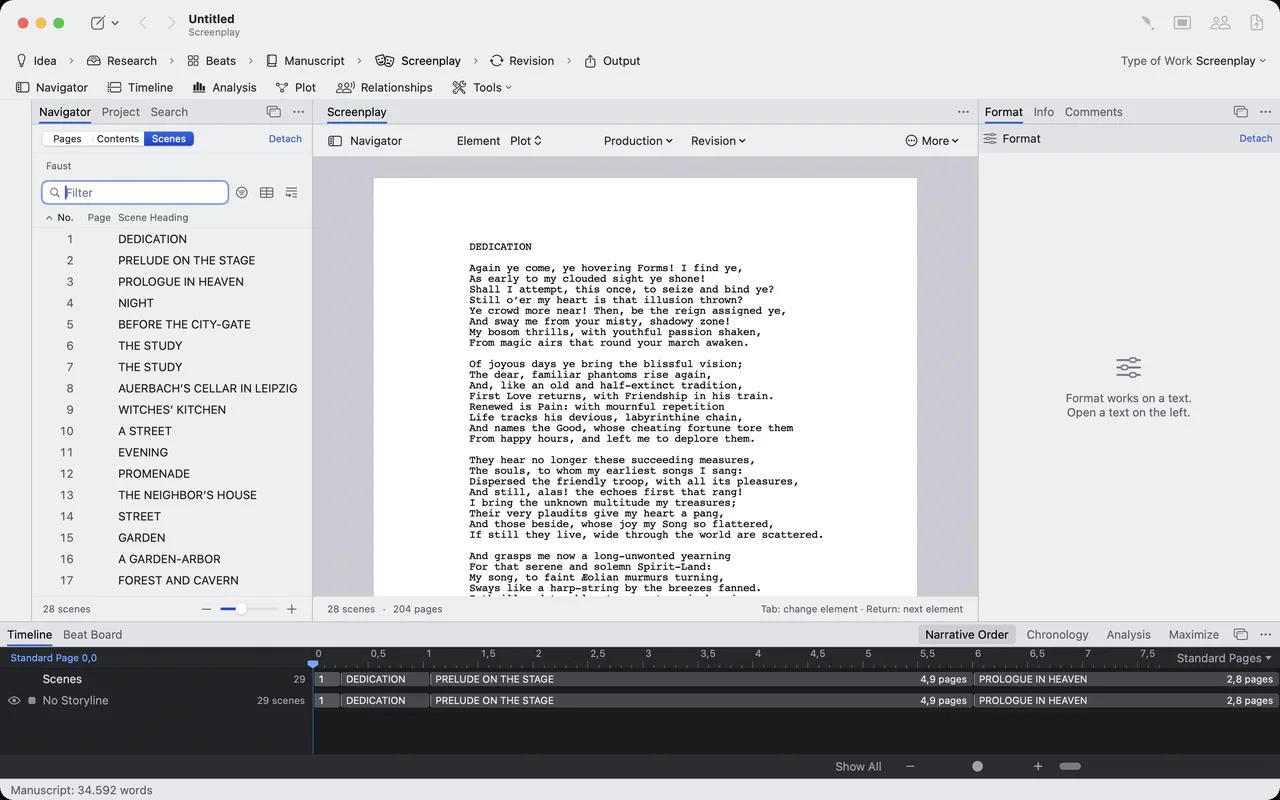
Goethe Write in light appearance with the Faust screenplay on pages and the scene navigator
The timeline under the screenplay: Dedication, Prelude on the Stage and Prologue in Heaven as clips with their page lengths
A slow zoom into a Faust screenplay page set in Courier

A slow zoom into a Faust screenplay page set in Courier

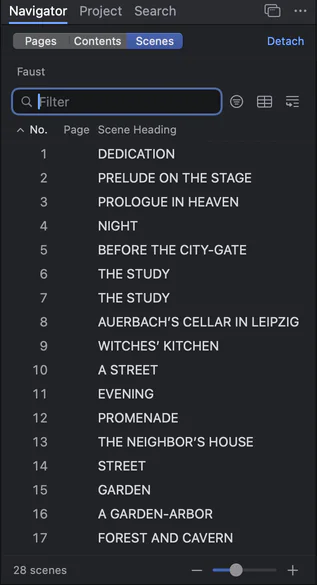
The scene navigator: numbered scenes of Faust with their headings

The scene navigator: numbered scenes of Faust with their headings

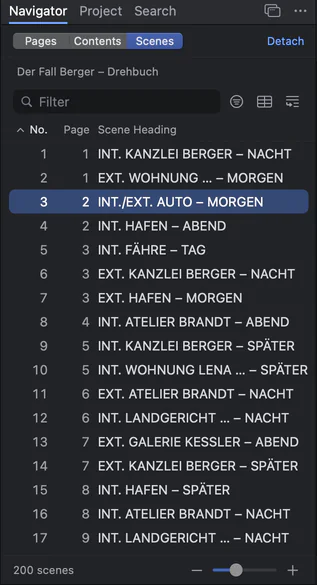
The scene navigator of a long screenplay with 200 scenes

The scene navigator of a long screenplay with 200 scenes

Write on the page you will print.

Novels, non-fiction and poems stand on real pages with margins, headers and page numbers, as in the PDF. Dark or light appearance, the paper stays paper.

More about it

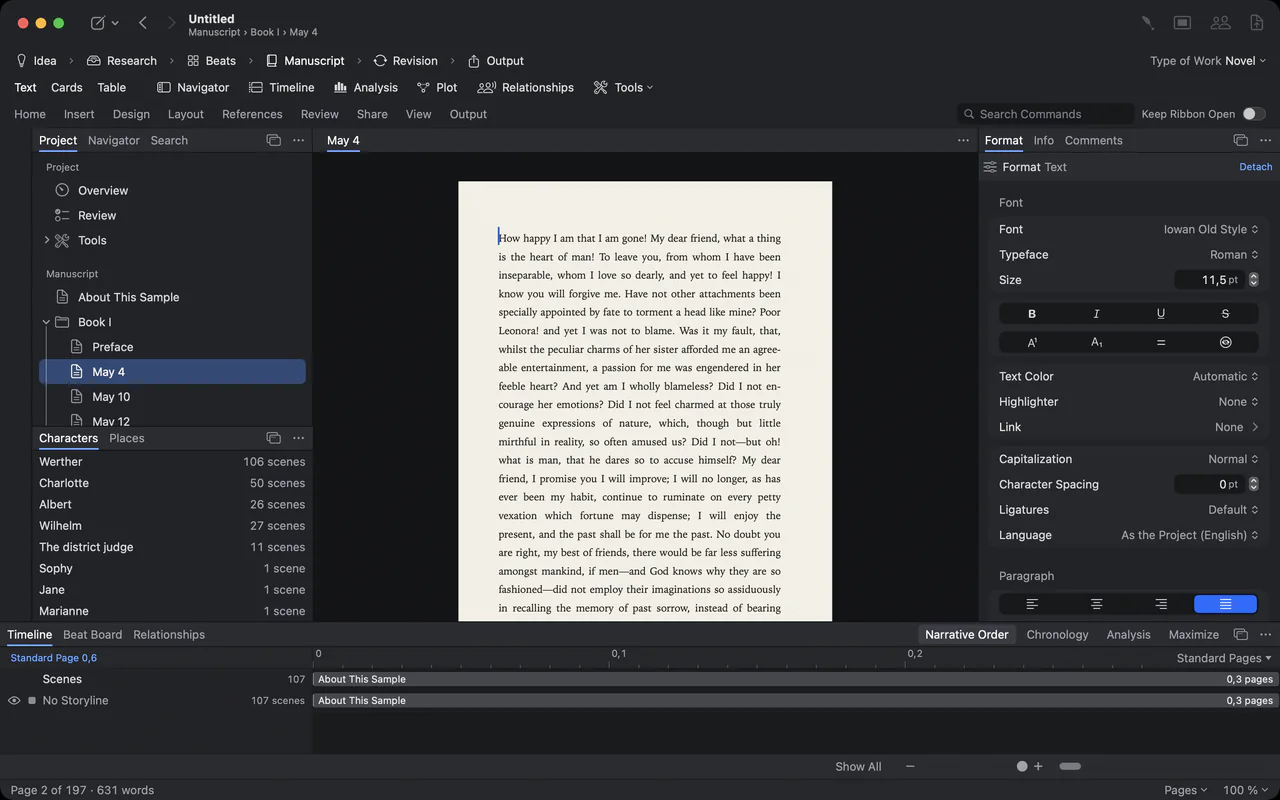
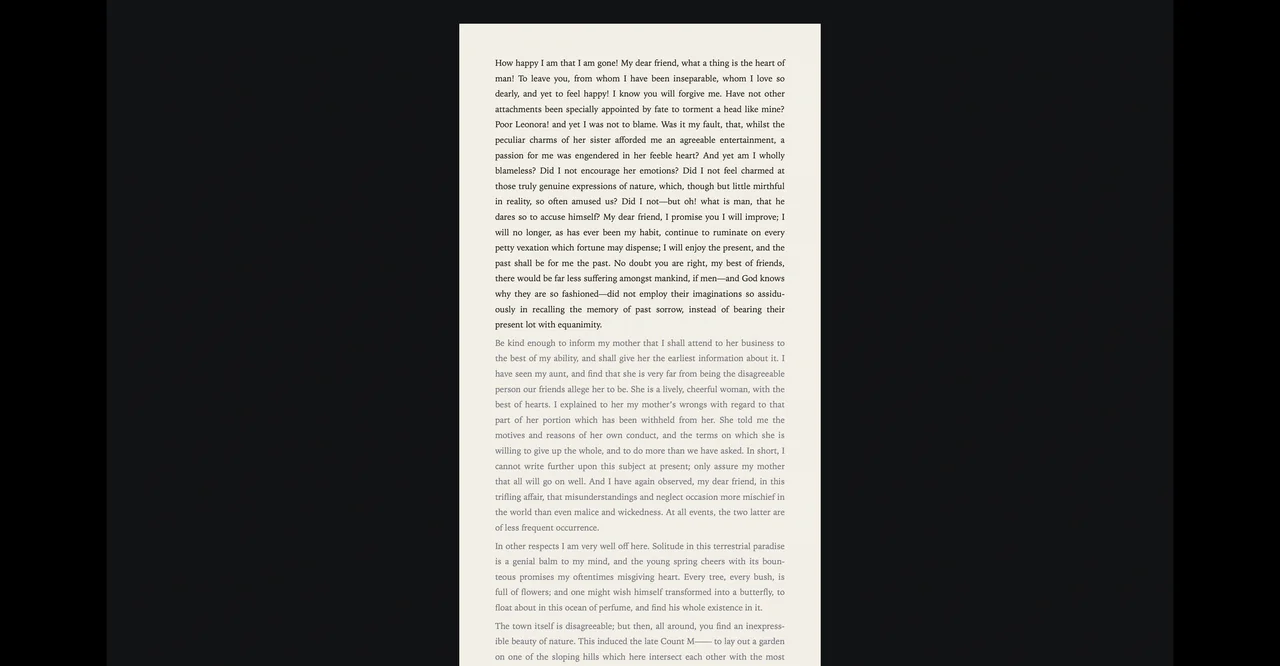
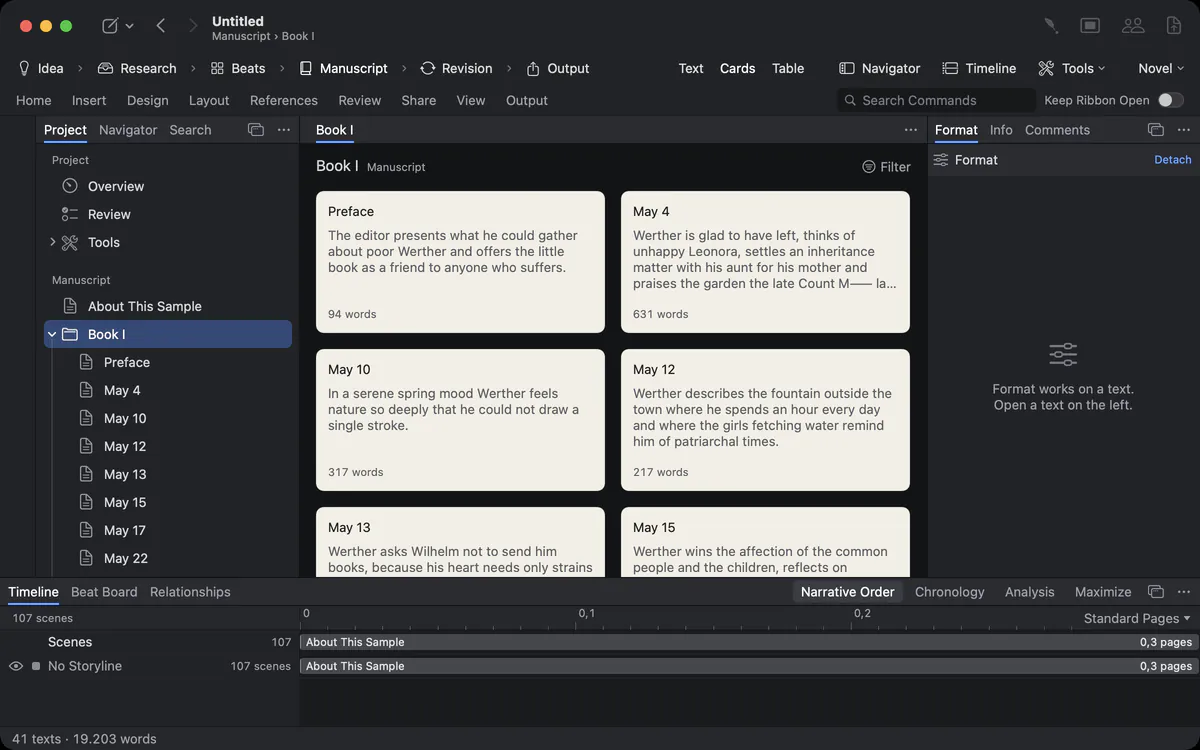
A letter from The Sorrows of Young Werther on a cream manuscript page, the project with its books and letters on the left, the Format panel on the right
Typing on the manuscript page: new words appear at the end of the letter in the page’s own typeface

Typing on the manuscript page: new words appear at the end of the letter in the page’s own typeface

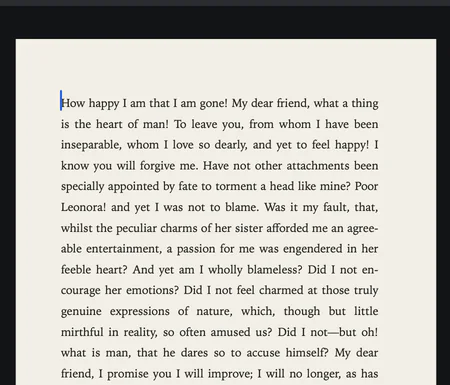
The same page in dark and in light appearance; the paper stays paper

The same page in dark and in light appearance; the paper stays paper

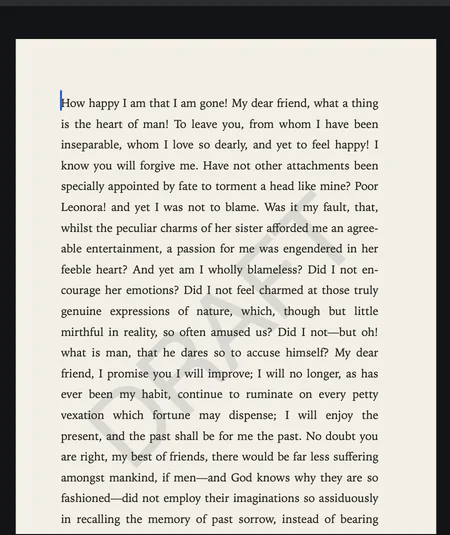
A page with a faint DRAFT watermark behind the text

A page with a faint DRAFT watermark behind the text

Close-up of a typeset manuscript page in a book face, justified

Close-up of a typeset manuscript page in a book face, justified

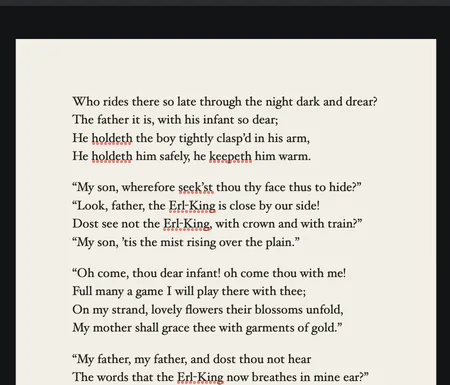
The Erl-King set line by line on the page

The Erl-King set line by line on the page

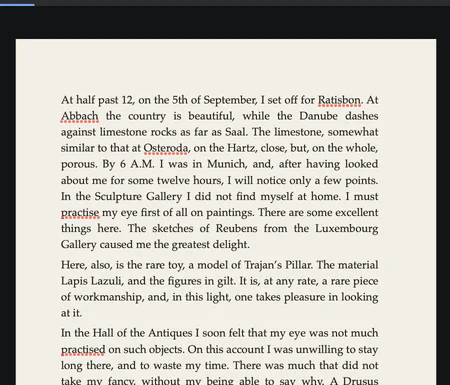
An entry of the Italian Journey, Munich, 6 September 1786, on its page

An entry of the Italian Journey, Munich, 6 September 1786, on its page

Every command in one fixed place.

The ribbon folds to its row of tabs and opens when you rest the pointer on one: Home, Insert, Design, Layout, References, Review, View and Output, plus Screenplay in a screenplay project. Keep Ribbon Open pins it.

More about it

The ribbon switching through its tabs: Home, Insert, Layout, References, Review and View
The ribbon’s Layout tab: margins, orientation, paper size, header and page numbers
The ribbon’s Review tab: spelling, comments, track changes and snapshots
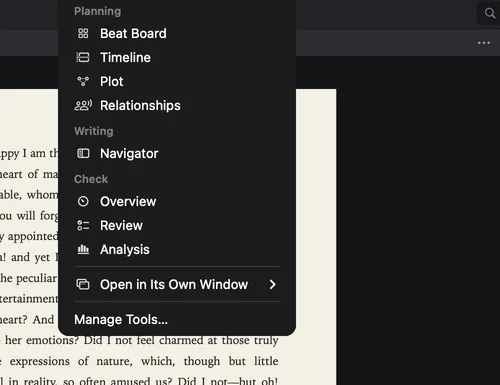
The Tools menu: Beat Board, Timeline, Plot, Relationships, Overview, Review, Analysis

The Tools menu: Beat Board, Timeline, Plot, Relationships, Overview, Review, Analysis

The style gallery: Body Text, Chapter, Subchapter, Section and Block Quote, each shown in its own type

The style gallery: Body Text, Chapter, Subchapter, Section and Block Quote, each shown in its own type

Format beside the text, or anywhere.

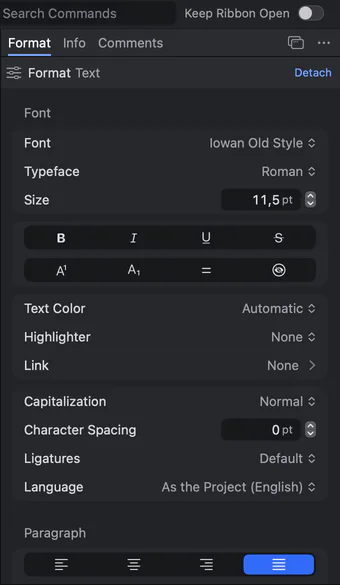
The Format panel shows the settings of whatever you select: typeface, size, spacing, ligatures, language. Detach it and it floats as a palette beside the page.

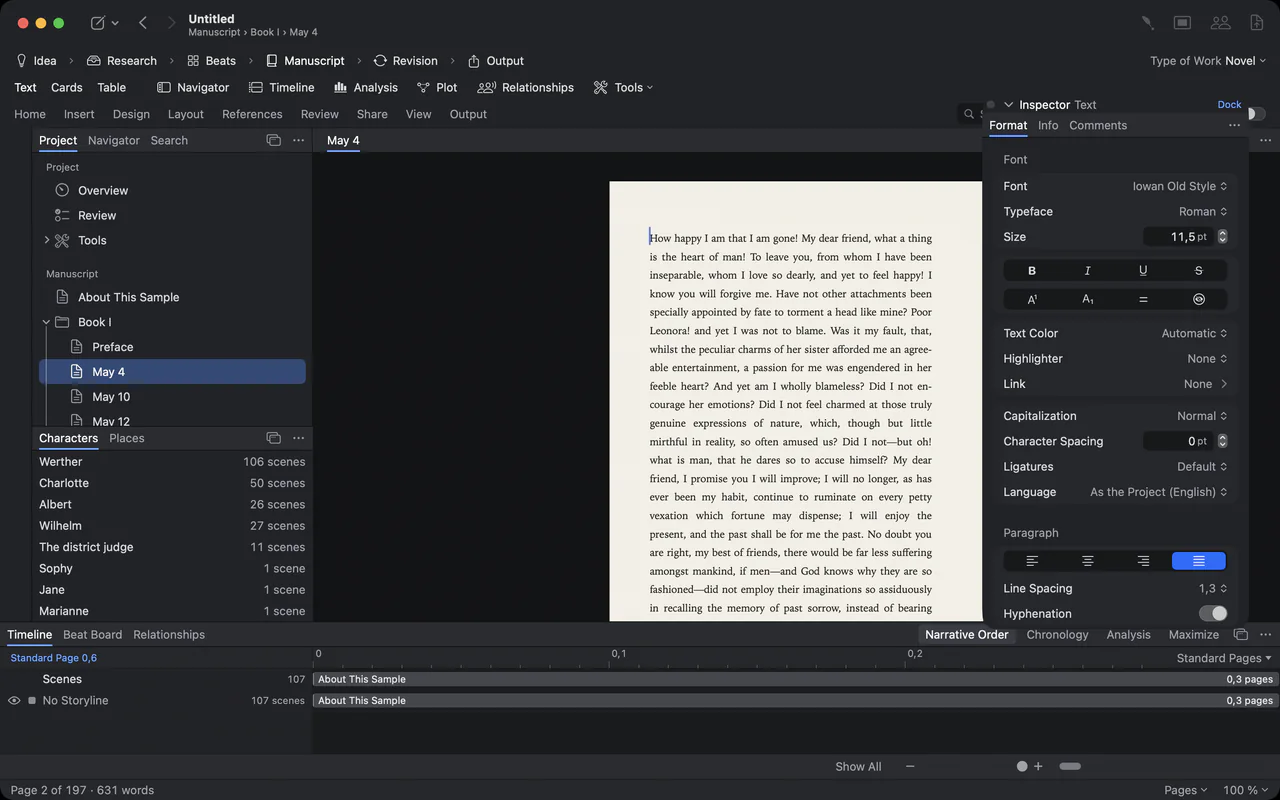
The Format panel docked at the right edge, then floating as its own palette
The Format panel: typeface, size, text colour, capitalization, character spacing, ligatures and language

The Format panel: typeface, size, text colour, capitalization, character spacing, ligatures and language

The Format panel detached as a floating palette beside the page

The Format panel detached as a floating palette beside the page

Plan in cards, tables and a navigator.

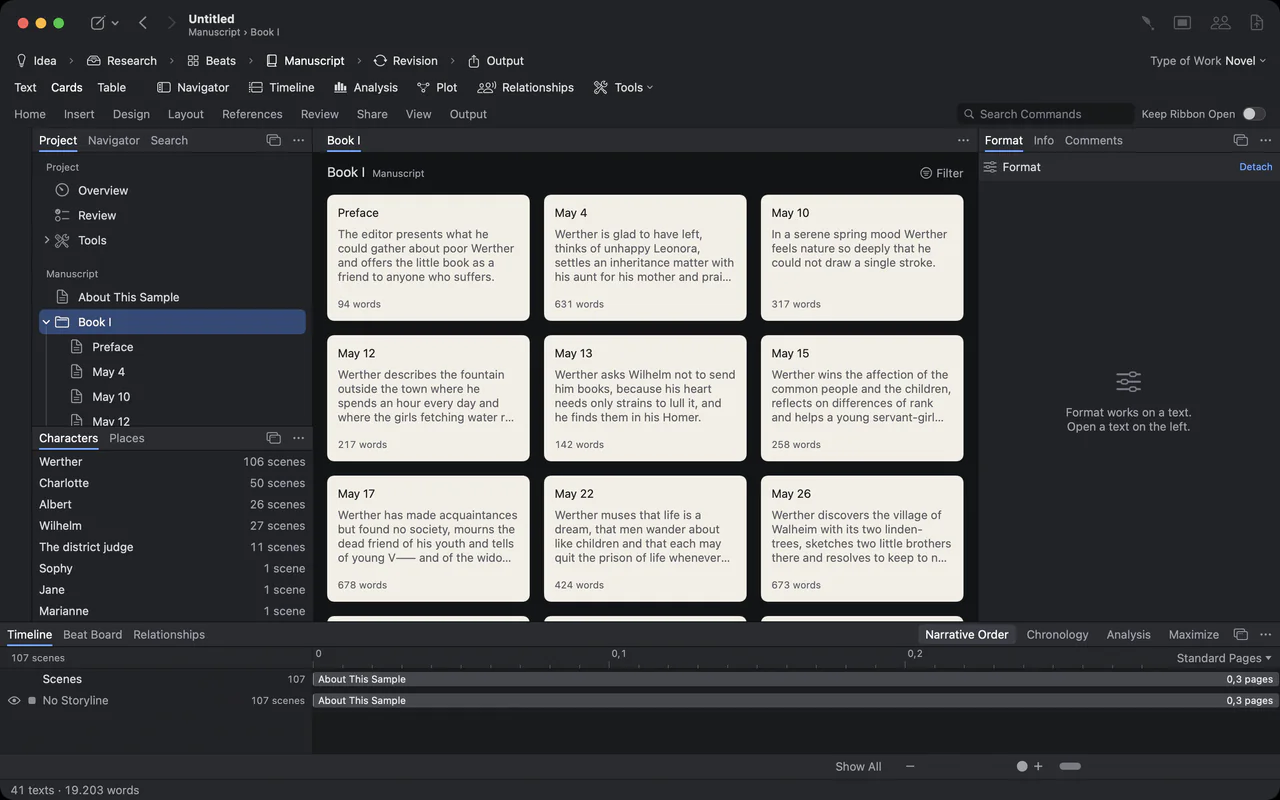
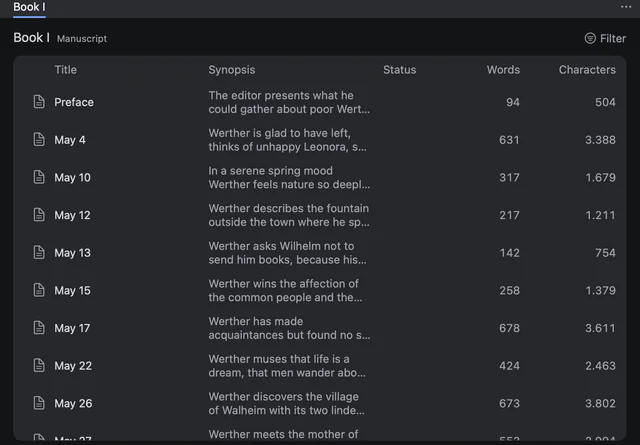
The same texts as index cards, as a table with status and word counts, or in the navigator with contents, page thumbnails and scenes. Change one and every view follows.

More about it

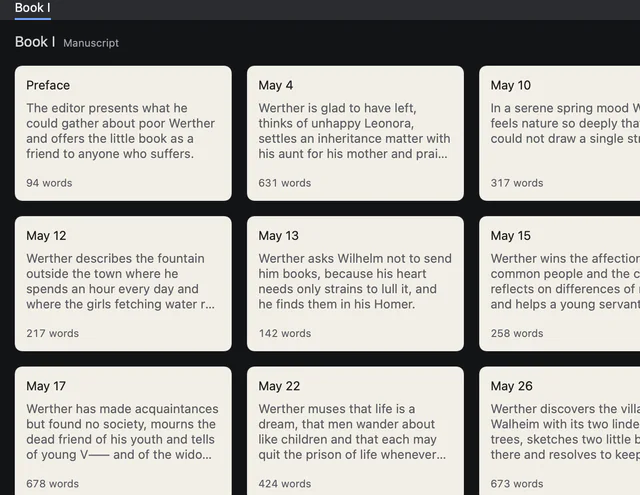
The letters of Werther’s first book as index cards with their synopses
The stage bar: Idea, Research, Beats, Manuscript, Revision, Output
Goethe Write moving through the stages of a work: Idea, Research, Beats, Manuscript, Revision and Output

Goethe Write moving through the stages of a work: Idea, Research, Beats, Manuscript, Revision and Output

The outline table with synopsis, status and word count per letter

The outline table with synopsis, status and word count per letter

The navigator showing Contents, then page thumbnails, then the numbered scenes of a screenplay

The navigator showing Contents, then page thumbnails, then the numbered scenes of a screenplay

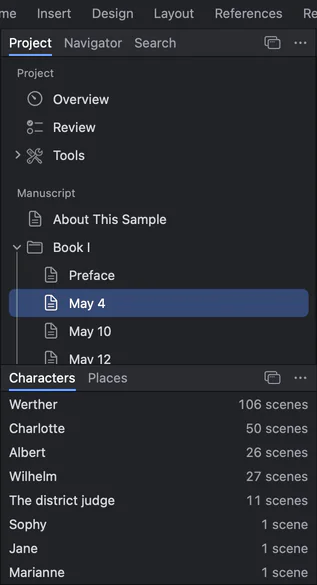
The project sidebar: overview, books with their letters, and the characters with the number of scenes they appear in

The project sidebar: overview, books with their letters, and the characters with the number of scenes they appear in

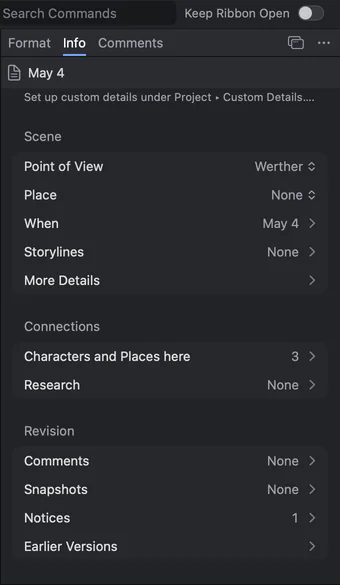
Scene details in the Inspector: point of view, date, place and connections

Scene details in the Inspector: point of view, date, place and connections

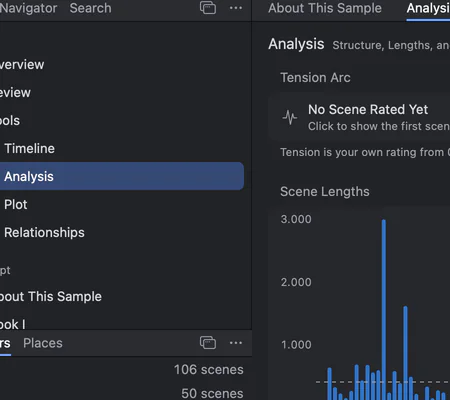
The analysis: scene lengths of Werther as a bar chart

The analysis: scene lengths of Werther as a bar chart

The whole work on one timeline.

Every scene is a clip as long as the scene, in tracks by storyline, character, place or point of view. Drag scenes to rearrange them; each change is one step you can undo.

More about it

A slow pan across the timeline of the Italian Journey
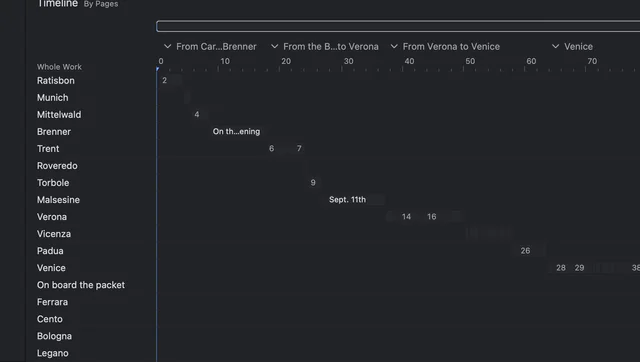
Tracks by place on the timeline: Ratisbon, Munich, Trent, Verona, Venice and more

Tracks by place on the timeline: Ratisbon, Munich, Trent, Verona, Venice and more

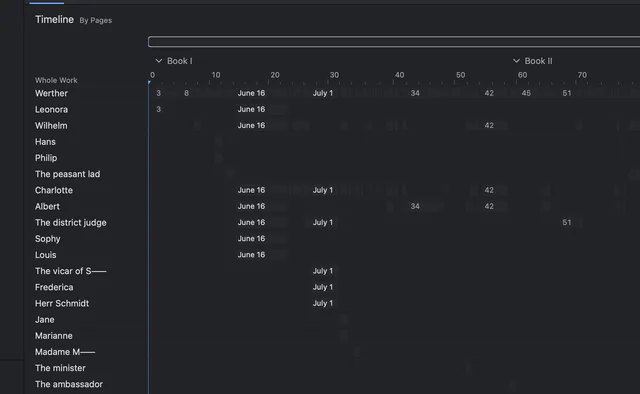
Werther on the timeline with one track per character

Werther on the timeline with one track per character

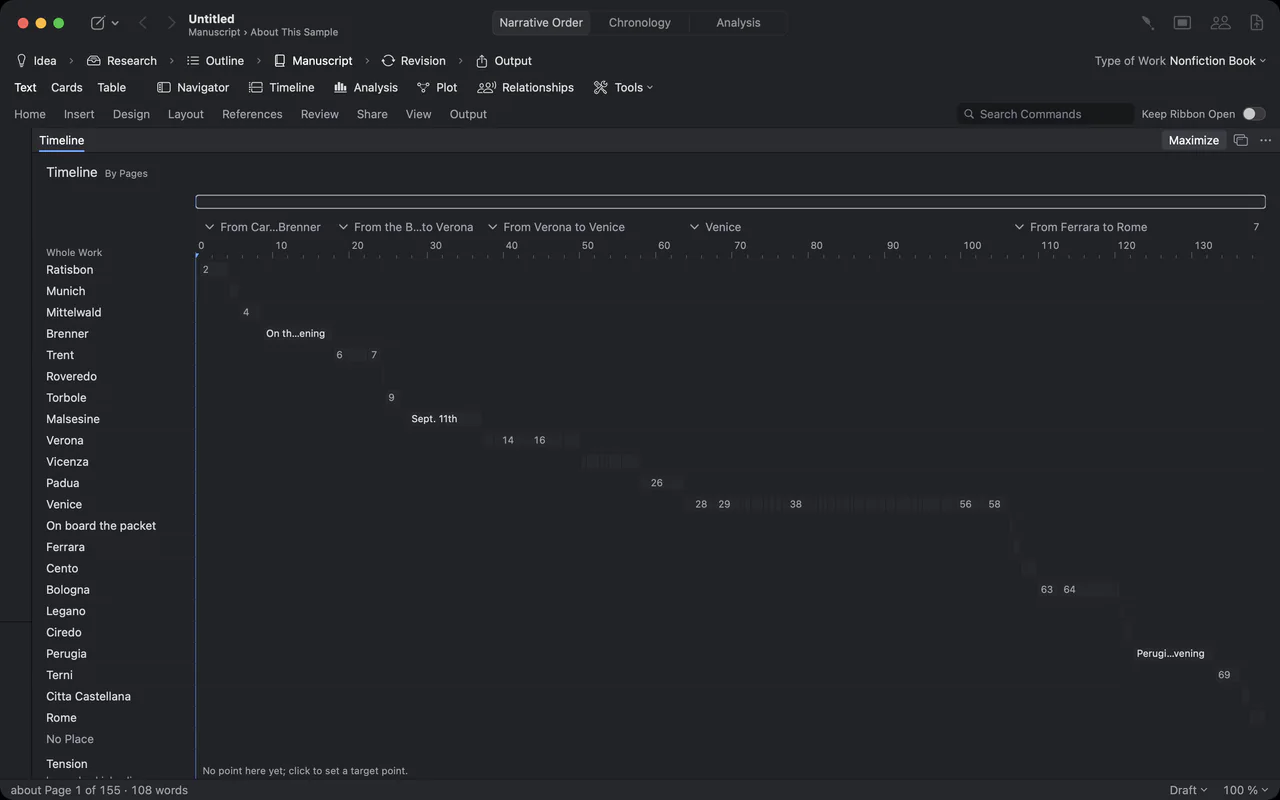
The Italian Journey on the timeline with one track per place, from Carlsbad to Rome

The Italian Journey on the timeline with one track per place, from Carlsbad to Rome

Characters and how they relate.

Every character and place has a profile with its appearances. The relationship map draws who is what to whom, with labelled lines and groups.

More about it

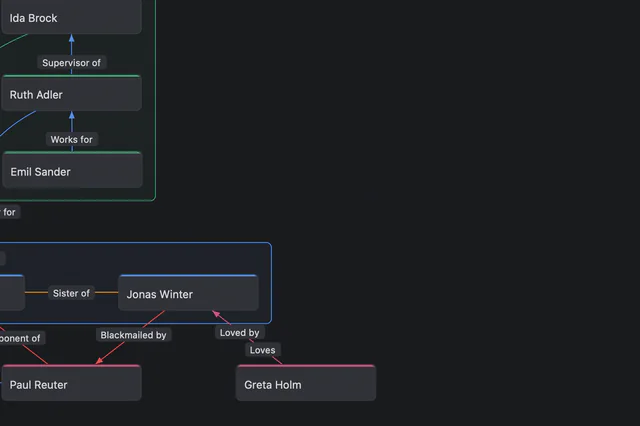
Two relationship maps: a sample cast in groups, then the characters of Werther
Close-up of the relationship map: grouped characters and labelled connections

Close-up of the relationship map: grouped characters and labelled connections

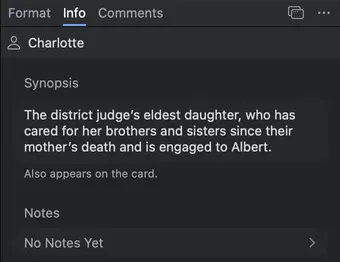
Charlotte’s profile in the Inspector: synopsis and notes

Charlotte’s profile in the Inspector: synopsis and notes

Index cards of the letters, each with title, synopsis and word count

Index cards of the letters, each with title, synopsis and word count

Focus: only the page.

One shortcut, ⇧⌘↩, and the sidebar, inspector and bars disappear. Nothing moves and nothing blinks until you press Esc.

More about it

The full window fading into Focus, where only the page is left
Focus: the window is dark and empty except for the page you write on

It reads your work. You stay the author.

Two kinds of help, kept strictly apart. Recognition finds the structure and the people in a finished work, on your Mac and without AI. Goethe is the AI assistant you call when you want one, with your own key.

A project in Goethe Write with the letters of a novel as separate texts in the sidebar and as index cards
After the import, every chapter is a text of its own – in the outline, on the cards and on the timeline.

No AI · offline

Recognition

Import a finished work. Chapters, characters and places are found for you.

  • Import Work reads one long file – PDF, plain text, Markdown, HTML or RTF – and makes a project of it.
  • Parts and chapters from number sequences: Arabic, Roman, written-out numbers and labelled headings.
  • People with their other names and titles, groups and places – each find with its passages in the text.
  • You confirm, add or remove each find in the window Detected. Undo Detection takes it all back in one step.
  • No key, no account, no internet connection. Nothing is sent anywhere.

More about recognition

Goethe’s small window beside a selected paragraph in Goethe Write: the job Improve, the suggested wording, and the buttons Discard, Again, Copy and Replace
Shown with the German interface; Goethe Write is also in English.

AI · your own key

Goethe, the assistant

Revise, shorten, check and ask – and nothing changes without you.

  • Right-click a selection, a card, a character or a PDF and choose Goethe…: Improve, Shorten, Correct, Check Scene, Find Contradictions, Summarize.
  • Every result arrives as a tracked change, a comment or a note. You accept or reject it; ⌘Z takes it back.
  • Before anything is applied, Goethe Write itself compares numbers, dates, names and quotations and shows what differs.
  • Six providers: Anthropic Claude, OpenAI, Google Gemini, Mistral, OpenRouter – or your own server on the Mac.
  • Your key stays in your Mac’s keychain. Your text goes straight to the provider you chose, never through us.

More about Goethe

Recognition and Goethe, side by side
RecognitionNo AI · offlineGoetheAI
What it isRules and a name lexicon inside the appA language model at the provider you choose
Where it runsOn your Mac, offlineAt your provider – or on your own server on the Mac
What leaves your MacNothingOnly what you choose under Goethe Reads, after your permission
What it doesSplits a work into parts and chapters; suggests people, groups and placesRevises, shortens, checks, summarises and answers questions
Who decidesYou confirm each findYou accept each change
What you needNothing more – it is part of Goethe Write on the MacYour own API key and Goethe Cloud; the provider bills its use

Out to every format.

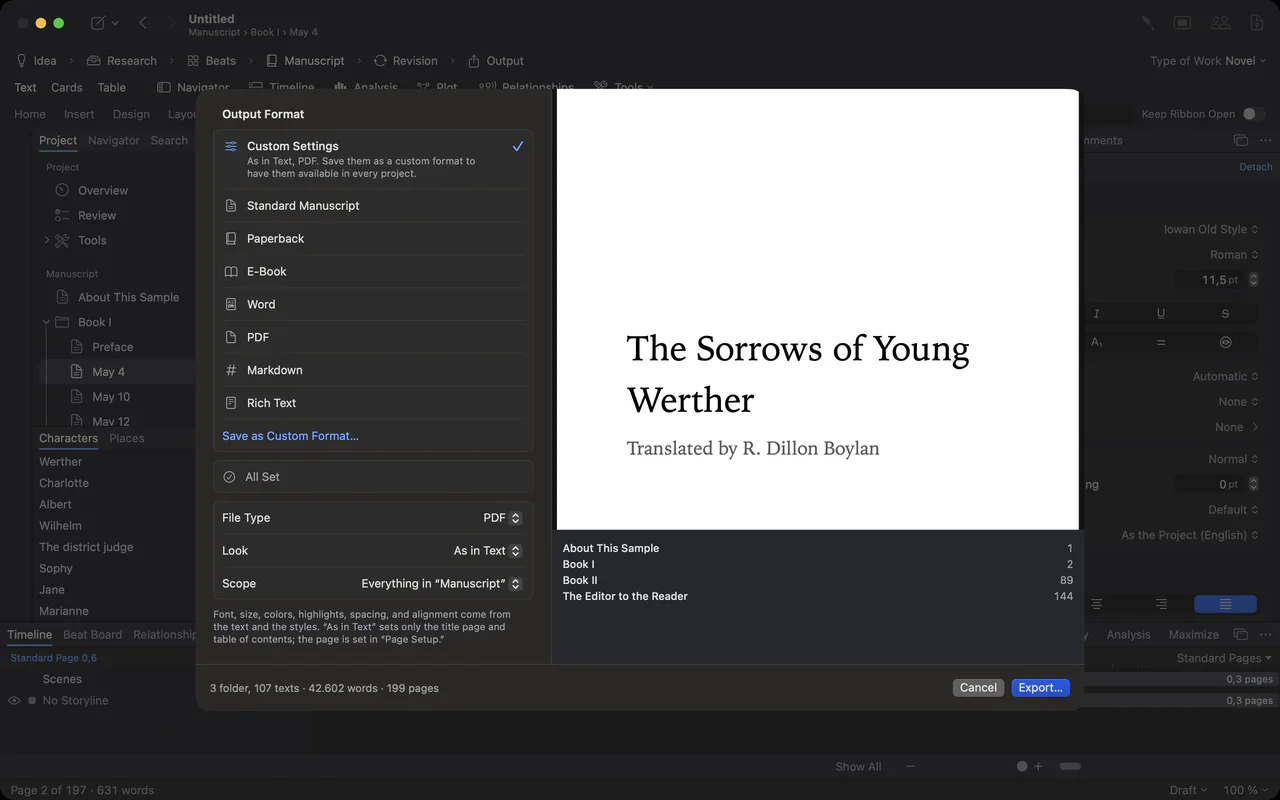
PDF, Word, EPUB, Markdown, Rich Text, Final Draft and Fountain, with a live preview before you export. A watermark goes behind every page when you need one.

More about it

The export sheet: output formats on the left, the title page as a live preview on the right
The export sheet opening over the manuscript, with formats and a preview of the title page

The export sheet opening over the manuscript, with formats and a preview of the title page

A page with a faint DRAFT watermark behind the text

A page with a faint DRAFT watermark behind the text

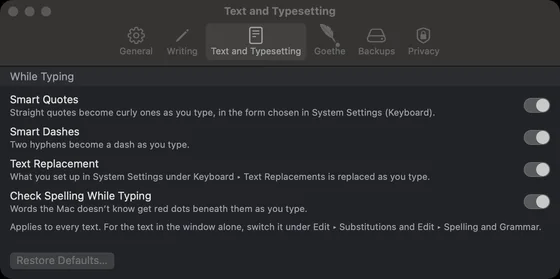
Settings, Text and Typesetting: smart quotes, smart dashes, text replacement and spell check

Settings, Text and Typesetting: smart quotes, smart dashes, text replacement and spell check

Law, scholarship and help built in.

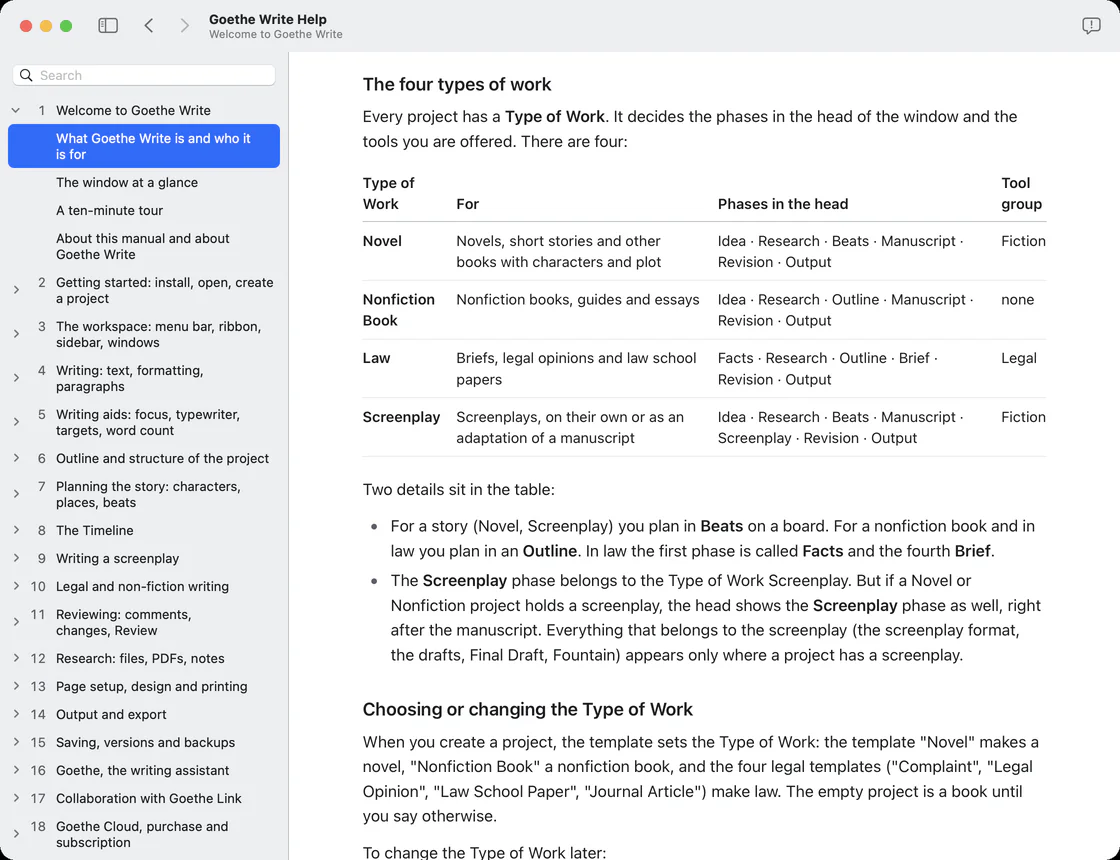
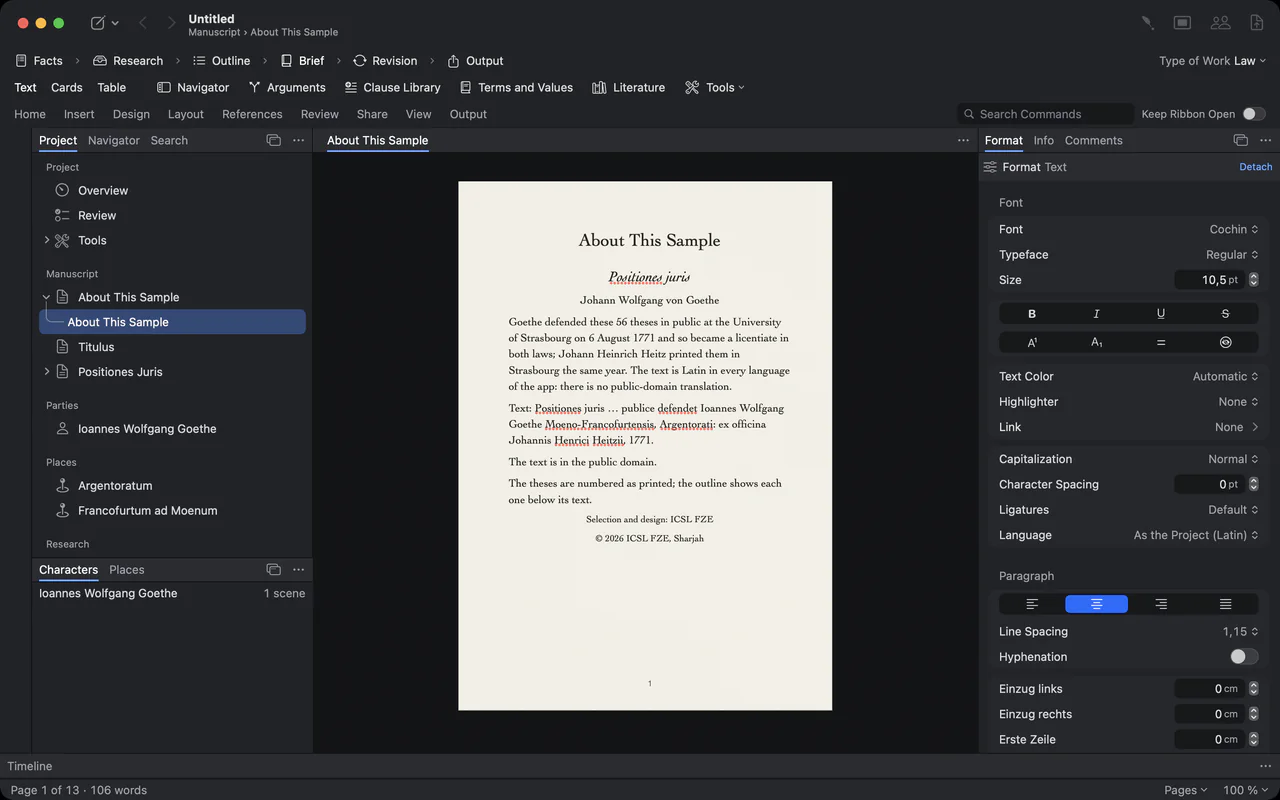
Legal and academic texts get their own tools, shown here with Goethe’s doctoral theses. The full handbook is inside the app.

The built-in handbook of Goethe Write with its chapters on the left
Goethe’s legal theses Positiones Juris set as an academic text on a page

On iPhone and iPad, free.

The companion app opens your projects, reads and searches them, and writes screenplays with an elements bar above the keyboard.

More about it

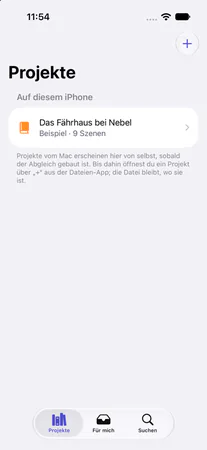
Goethe Write on iPhone: the list of projects
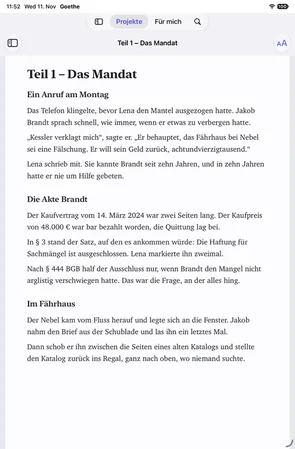
Goethe Write on iPad: reading a text
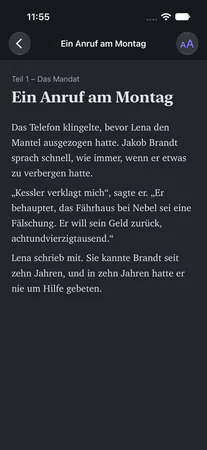
Goethe Write on iPhone: reading a project in dark appearance

Pictures of the iPhone and iPad app show its German interface.

Then and now.

Six habits of the house on the Frauenplan, and what became of them in Goethe Write.

  1. Weimar

    The high desk

    In his study, a plain room far plainer than the rooms where he received guests, Goethe often wrote standing.

    Goethe Write

    Focus and Typewriter

    Focus leaves nothing but the page. Typewriter keeps the line you are writing in the middle of the window.

  2. Weimar

    Faust, sixty years long

    Begun in his twenties, finished shortly before his death, revised again and again in between.

    Goethe Write

    Snapshots and alternatives

    Keep a text as it is, try another version, compare the two paragraph by paragraph. Longer passages you cut are kept under Deleted Passages.

  3. Weimar

    Rehearsals at the theatre

    As director of the Weimar court theatre, Goethe worked through the text with the actors before it reached the stage.

    Goethe Write

    Table reads and read links

    Everyone here opens the same scene on every connected device. A read link shows your work in any browser, and comments arrive in your project.

Read our story

Try it free for 14 days on your Mac.

Then US$79.99 once for the Mac. Goethe Cloud, for working together and the assistant, is US$4.99 a month or US$49.99 a year. iPhone and iPad are free.

Download on the Mac App StoreMac · 14 days freeDownload on the App StoreiPhone and iPad · free

See pricingDownload