Import a finished work – chapters, characters and places detected on your Mac, without AI
 No AI · offline
You have the novel as one PDF, the screenplay as a text file, the thesis as one long document. Import Work makes a project of it – and finds the structure and the people in it without sending a word anywhere.


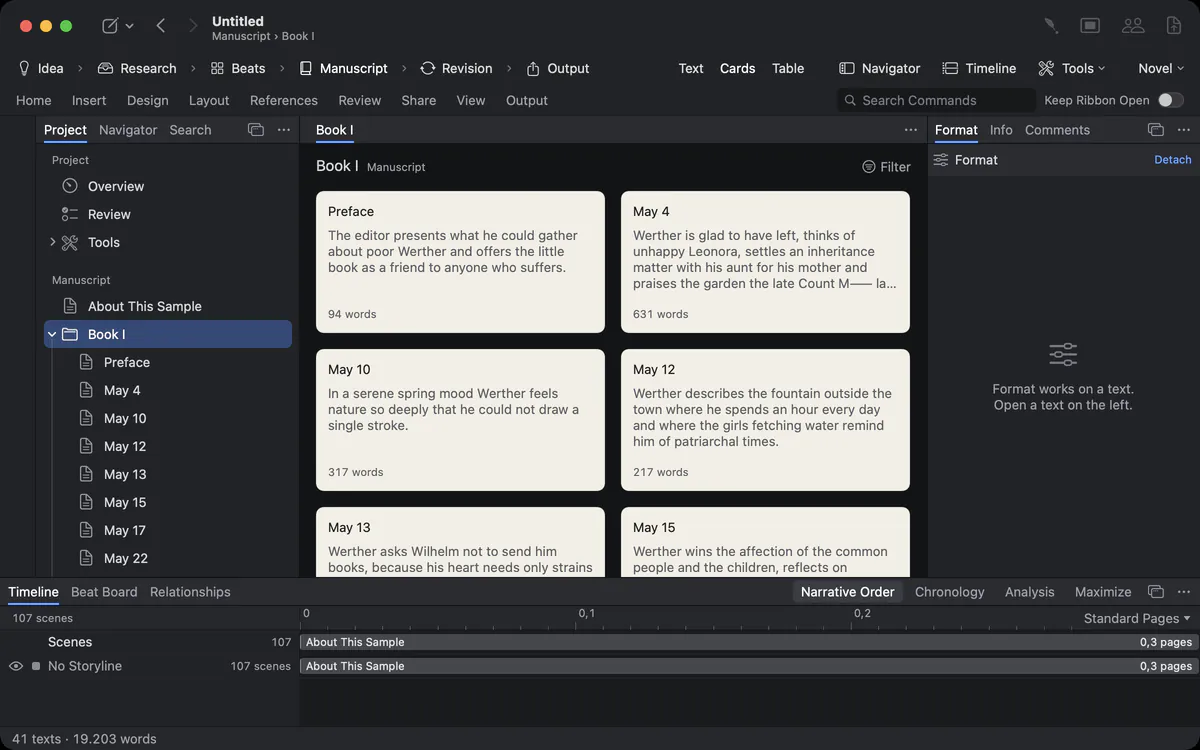
One file, four hundred pages, no structure
Your old manuscript exists only as a PDF. To work on it properly you would have to cut it into eighty chapters by hand and type in every character again.
A finished work in one file is the hardest kind of import. The chapters are only lines of text, the characters only names in sentences. Copying it in by hand takes days, and an AI service that “does it for you” means sending the whole book to someone else’s server.
How Goethe Write solves it
- Choose File ▸ Import ▸ Import Work… and pick the file: PDF, plain text, Markdown, HTML or RTF.
- A progress window runs; Stop ends it.
- The preview says “n pieces containing n words”. On the left are the pieces Goethe Write found – parts and chapters in the order of the work, each with a tick. On the right you read the beginning of the piece you click.
- Choose the Type of Work: Nonfiction Book, Novel, Screenplay, Stage Play or Legal Text.
- Leave Detect People and Places on, or switch it off. View shows the findings; Create All marks eligible entries to be created at import.
- Untick pieces you don’t want, and click Import.
Goethe Write makes a new project: the pieces become folders and texts in the manuscript, the original file goes into the project’s research, and the project you had open stays as it was.
What exactly it detects
“Chapter” is easy. But what about “XII.”, “Part Two”, “– 7 –” or a chapter that is only a number?
The recognition does not look for a fixed list of chapter names. It looks for number sequences: Arabic and Roman numerals, numbers written as words, labels such as Chapter 3, Part Two or Book I, numbers framed by dashes, and headings that carry a number in brackets. It follows a sequence that counts up – 1, 2, 3 or I, II, III – and ignores stray numbers in the text. The front matter before the first chapter stays in the first piece.
A find becomes a suggestion only with evidence: a person needs at least three passages and, in a work with several chapters, appearances in at least two of them. Mentions that are only references are held back. The name lexicon is most complete for German texts today.
You decide, item by item
Automatic tools are fast and wrong in ways you only discover later.
When the import is done, the window Detected opens. At the top it says how many people, groups and places were found. The list has the columns Name, Type, Passages, Other Names and State, in four sections:
How you confirm what is right
- To Review holds the finds with a question, for example a title – “Name – 12 passages. Who is meant?” – with Choose Person, Separate Entry and Do Not Create.
- Detected holds the entries already created; More the finds you can create yourself; Removed what you removed.
- Choose a row: its passages in the text appear on the right, and a click jumps there.
- Confirm moves an entry out of the folder “Detected” into your characters, people or places. Add creates a find as an entry. Remove takes it away.
Created entries first wait in a folder Detected in the characters or places section, groups in a subfolder Groups – so they never mix with what you made yourself until you confirm them.
Undo in one step
You tried it on the wrong file, or you simply want to start over.
Undo Detection – the button in the window, or Edit ▸ Undo Detection – removes every entry you have not touched: unchanged, without text, still in the folder. What you confirmed, renamed or described stays. View ▸ Detected… opens the window again later, as long as the project that Import Work created is open.
Why without AI
Your unpublished novel is the most valuable file you own.
The recognition runs on your Mac. It needs no key, no account and no internet connection, and it sends nothing anywhere. It is reproducible: the same file gives the same result. Goethe, the AI assistant, is a separate, optional tool that you call yourself – for example to complete a character’s details from the text, each with evidence.
HTML with forms or embedded content is refused for security reasons. Under the preview Goethe Write tells you what happened to the text: “The text was taken over unchanged”, the heading marks removed from Markdown, or a summary of the clean-up of a PDF.
Other ways in
A Word file comes in with headings as chapters, footnotes, comments, tracked changes and pictures (File ▸ Import ▸ Word File…). A Scrivener project brings its binder, synopses, notes and labels. A screenplay in FDX, Fountain, text or PDF comes in through Import Screenplay… with scenes and characters. More on import and export.
Questions about Import WorkNo AI · offline
Does Import Work use AI or send my text anywhere?
No. Chapters, people, groups and places are detected on your Mac, without AI and without a network connection.
Which file types can Import Work read?
PDF, plain text, Markdown, HTML and RTF. Word files and Scrivener projects have their own import routes that keep more of their structure.
Will it create dozens of wrong characters?
Finds become entries only with evidence, and they wait in a folder called Detected until you confirm them. Undo Detection removes everything you have not touched in one step.
Can I change the chapter split before importing?
You can untick pieces you don’t want in the preview. After the import, Merge and Split in the sidebar adjust the chapters.
In the handbook
- Outline and structure of the projectOrganise a project in Goethe Write: texts, folders and collections, status, label and synopsis, cards and table, phases and tools, importing Word and Scrivener.
- Output and exportExport a work as PDF, Word, EPUB, Markdown or RTF, a screenplay as Final Draft, Fountain or PDF; choose the look, scope and contents, and import Word files.
Read next
- Import and exportBring in Word, Scrivener, Final Draft, Fountain, PDF and whole works; hand over PDF, Word, EPUB, ODT, LaTeX, HTML, FDX, Fountain, scene lists and more.
- Characters, places, relationshipsCharacter and place profiles, a relationship map with groups and labelled roles, plot threads, what characters know, story rules and continuity checks.
- Goethe, the AI assistant
 AIAn optional writing assistant with your own API key: revise, shorten, check, answer questions. Every change tracked, nothing sent without your yes.
Bring your finished work home.
Try Goethe Write free for 14 days on your Mac and import a manuscript you already have.
Try it free for 14 days on your MacRead about importingSee pricing