A story timeline for novels and screenplays – borrowed from film editing
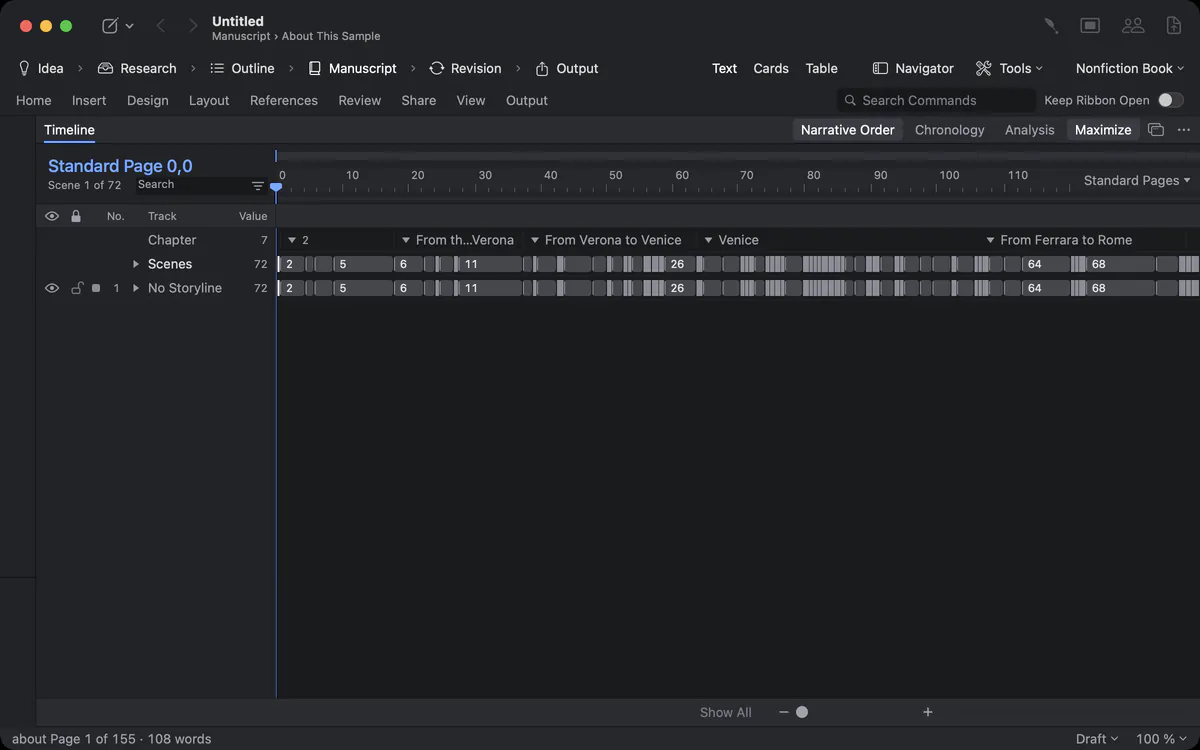
Every scene becomes a clip with its length, laid out on tracks for storylines, characters and places. You see the shape of the story at once – and you change it by dragging.


A story you cannot see is a story you cannot fix
The middle sags, one storyline disappears for eighty pages, and a character turns up in Venice the day after she left Rome. You notice it in the third draft – or a reader does.
The outline tells you the order of the scenes. It does not tell you how long they are, which storyline carries which part, or what happens when. That is what a timeline is for.
How Goethe Write solves it
- Open the Timeline in the bottom panel, or with Maximize as the whole middle of the window.
- Every scene is a clip. Its width is its length – in pages, words, or equal widths, as you choose.
- Tracks show storylines, characters, places and points of view. One scene can stand on several tracks.
- Zoom smoothly from one chapter to the whole work; the overview above shows where you are.
Narrative order and chronology
Your novel opens in 1989, jumps to 1945 and returns. You need to check that the dates really fit.
The timeline has three modes at the top: Narrative Order (as the reader meets the scenes), Chronology (as they happen in the story) and Analysis. Give a scene a date and time in the inspector, and it takes its place in the chronology. A flashback is recognised by itself: if a scene is dated before the dated scene preceding it, the timeline marks the jump back. Scenes without a date wait in their own row.
Change the story by dragging
Moving a scene in a long manuscript is surgery. On the timeline it should be a gesture.
Drag a clip to a new place, and the scene moves in the manuscript. Drag it onto another track, and it joins that storyline. Select several clips and move them together. Tracks have an eye to hide them, a lock against accidental moves, a colour, a name and an order. Characters and places can be dragged onto the timeline from the sidebar.
Curves for tension, mood and pace
You feel the second act is flat, but you can’t point to where.
Below a track, properties such as tension, mood or pace can be shown as curves: give each scene a value, and the curve shows the shape of the story. The Analysis tool adds a tension arc, scene lengths, points of view and appearances of characters. Search and filter find scenes by name, character or place and dim the rest.
The timeline while you write
You don’t want to switch views to know where you are.
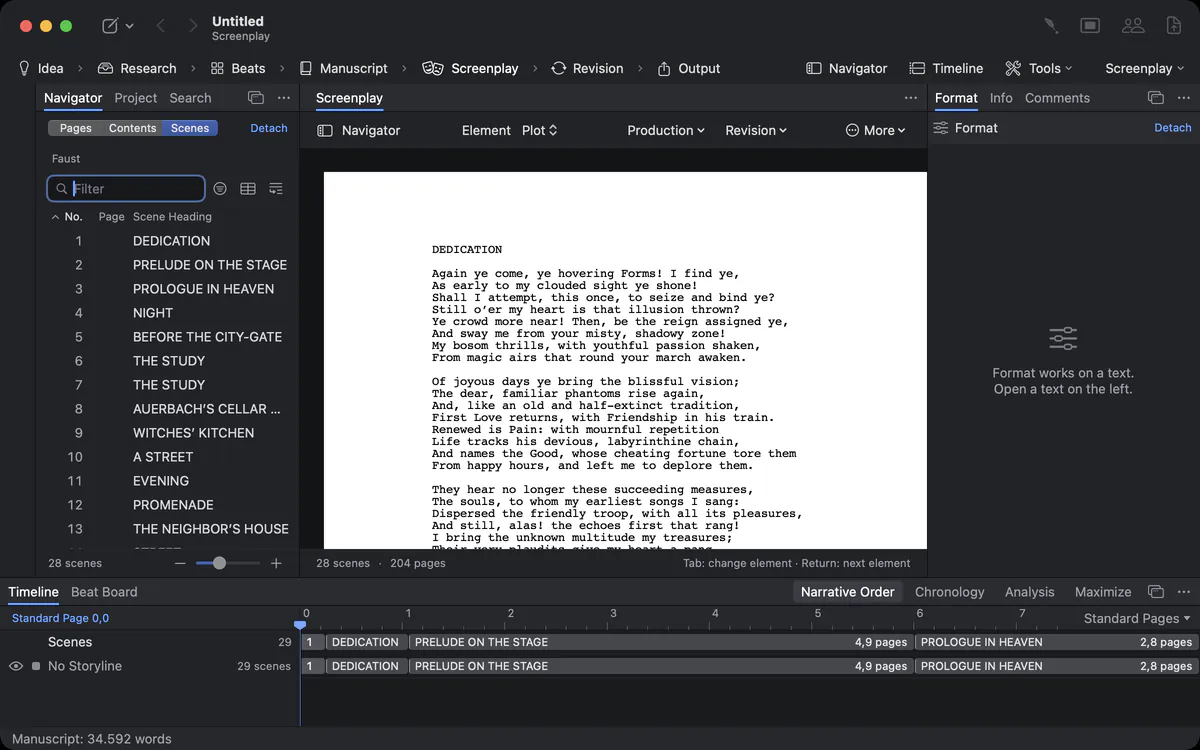
The timeline sits as a band below the page, so you always see where the scene you are writing stands in the whole work. A marker shows the position of the cursor. With Always Dark Timeline in the View tab, the timeline stays dark even in a light window, like an editing suite. Every key has its place: the timeline is fully usable with the keyboard and with VoiceOver.
For novels, screenplays and nonfiction
A screenplay’s clips are measured in pages and eighths, as productions count. A novel’s in pages or words. A biography or a travel book shows its dated chapters in time – the sample Italian Journey under Help ▸ Samples is a good place to try it. On iPhone and iPad, the companion app shows a timeline with tracks for the scenes and main characters of a screenplay.
Dates, step by step
Put a scene in time
- Select a scene and open the Scene section of the inspector.
- Under When, write how the story names the time – “Day 3, evening” – and set a date for the timeline.
- Switch the timeline to Chronology. The scene takes its place in the order of events.
- Scenes without a date wait in a row of their own until you give them one; a flashback is marked by itself.
Tracks in depth
Seven storylines are too many to see at once – until you hide five.
Tracks can follow storylines, characters, places and points of view, and several kinds at once. Each track has an eye to hide it, a lock against accidental moves, a colour and a name, and you drag tracks into the order you want. Only this track shows a single track and dims the rest; pointing at the head of a track shows its details. Under a track, its properties unfold: values per scene and their curves. With the hand tool you scroll, with the selection tool you choose several clips, and the footer shows the length of what you selected in pages or words.
Keyboard and VoiceOver
Every action on the timeline has a key: move between clips, select, move a clip earlier or later, zoom and jump to the cursor’s position. With VoiceOver each clip is read with its title, length, track and position, so the timeline is usable without a mouse and without sight.
Questions about the timeline
Does moving a clip change my manuscript?
Yes. Dragging a clip on the timeline moves the scene in the manuscript, and dragging it onto another track assigns it to that storyline.
Can I see the order in which events happen?
Yes. Switch to Chronology. Scenes with a date stand in the order of the story; flashbacks are marked by themselves.
What does the width of a clip mean?
Its length in pages, in words or equal widths – you choose the measure at the top of the timeline.
Does the timeline work for screenplays?
Yes. Scenes are measured in pages and eighths, and the timeline band runs below the screenplay page.
Can I hide tracks I don’t need?
Yes. Each track has an eye to hide it and a lock against accidental moves. Only this track shows a single track and dims the rest.
Can I use the timeline without a mouse?
Yes. Every action has a key, and VoiceOver reads each clip with its title, length, track and position.
See the whole story at once.
Try Goethe Write free for 14 days on your Mac and open one of Goethe’s works on the timeline.
Try it free for 14 days on your MacRead the timeline chapterSee pricing