Import and export for writers – from Word, Scrivener and Final Draft to EPUB, LaTeX and FDX
Open what you have written elsewhere, and hand over exactly what editors, publishers, universities and productions ask for – from one project, without retyping.


Your work is in other people’s formats
The draft is in Word, the old project in Scrivener, the script from your co-writer in Final Draft – and the publisher wants EPUB, the university LaTeX, the production a scene list in Excel.
A writing app that only speaks its own format is a dead end. Goethe Write reads what you already have and writes what others need, and it keeps the structure on the way in and out.
Bringing your work in
How a Word file comes in
- Choose File ▸ Import ▸ Word File… and pick one or several files.
- Leave Chapters and sections as texts of their own on: every upper heading becomes a folder or a text of the outline.
- Leave Take over page, header and footer and table of contents on, if the project has no page of its own yet.
- A sheet Word File Imported says in two or three sentences what came in: texts, folders, footnotes, comments, changes, pictures.
Text boxes and shapes don’t come along; their text stands where Word reads it, and Goethe Write says how many there were. If the Word file came from this project and went through an editor’s hands, Review ▸ Apply Edits brings the editor’s tracked changes back into your texts.
Handing it over
The same book, five recipients, five formats – and none of them should cost you a day.
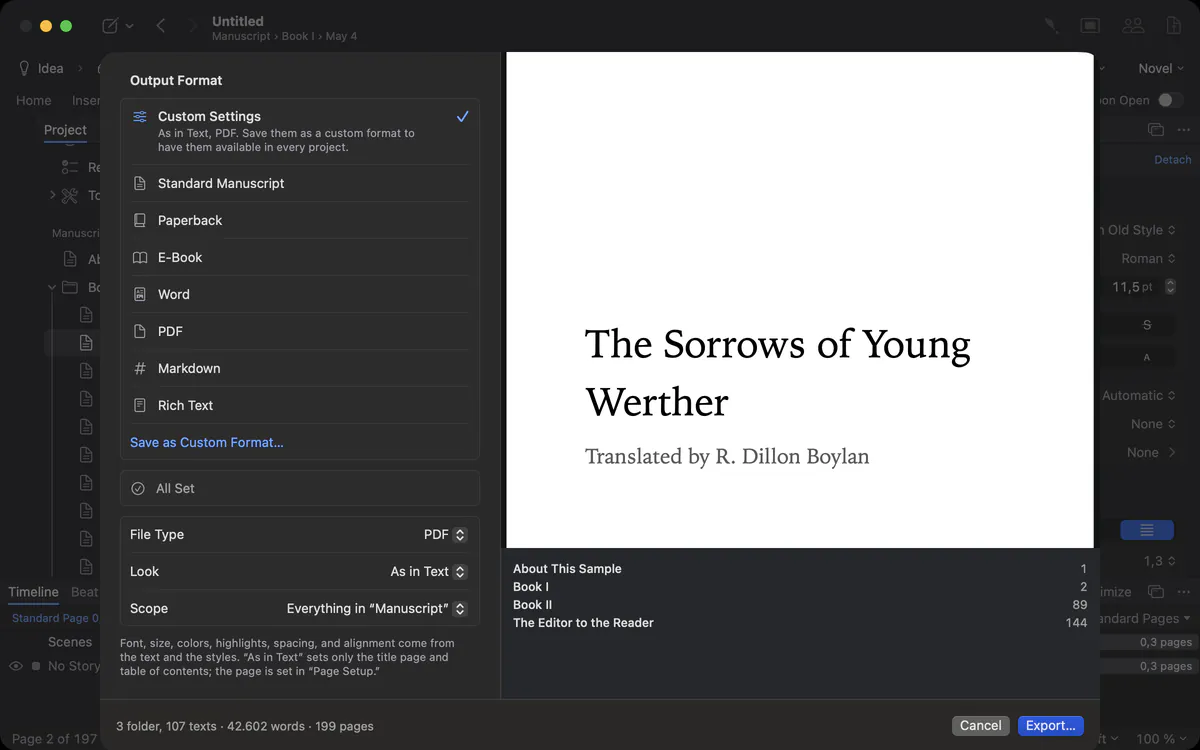
Choose File ▸ Export…. On the left, choose what the result is for – Standard Manuscript, Paperback, E-Book, Word, PDF, Markdown, Rich Text or a format of your own – check the preview on the right and export. File ▸ Export As writes any format straight into a file.
Before exporting, Goethe Write runs a check and tells you what might surprise you – an empty chapter, a missing picture, a comment that would go along. You decide what goes in: the manuscript only, texts marked In Export, comments and changes, a title page, a table of contents and a bibliography.
Screenplays travel without loss
Your co-writer stays in Final Draft. You don’t want to lose a setting every time the file crosses over.
An FDX you open and export again unchanged is the same file, byte for byte. Only paragraphs you changed are written anew; settings Goethe Write does not know are passed through. Scene numbers, revisions and the title page go along. Fountain, Highland and Fade In are written too. More on the screenplay page.
Protected and personal output
From the Output tab: a PDF with Password, a Protected Word File for reading, comments or tracked changes only, a watermark on every page and PDF per Recipient with each name in the watermark. See typesetting.
An open format of its own
What happens to your book if the app disappears?
Goethe Write saves projects as .goethe packages and exchanges them as .goethex files. Both are documented in a published, open specification under CC BY 4.0, with JSON schemas and a reference reader in Python under MIT. Any developer can read your project without Goethe Write – your text stays yours.
Formats of your own
Your publisher wants Word in Charter 11 points, 1.5-spaced, page numbers bottom right – every time.
Set file type, look, page and everything else once, click Save as Custom Format… and give it a name. It appears in the list with a short description such as “PDF · Book · Paperback 12 × 19” and applies to every project on this Mac. The project itself stays as you like to write it; the format only shapes the output.
Choose what goes in
The export can take the whole manuscript or one part of it, the texts marked In Export, a title page with your name, a table of contents with one to four levels and a bibliography. Headings and what stands between texts (a blank line, a scene break, a new page) are set per output. Fields show their values, cross-references their targets, and comments and tracked changes go along only where the format can carry them – into Word and OpenDocument, for example. The Output tab of the ribbon holds the same choices for quick exports without opening the sheet.
Questions about import and export
Can I import my Scrivener project?
Yes. Scrivener 2 and 3 projects come in with the binder as the outline, synopses, notes, labels, status, keywords, collections, snapshots and targets. Scrivener’s saved searches stay behind.
Does Goethe Write export EPUB?
Yes. The e-book export writes EPUB with a table of contents and footnotes for Apple Books, Kobo and other readers.
Can I export for LaTeX or Overleaf?
Yes. The LaTeX export writes a ZIP with the .tex file, the literature as BibTeX and the pictures.
Does the Word export keep footnotes and comments?
Yes. Footnotes, comments with replies and tracked changes with person and date go into the Word file.
Can I import a Word file with tracked changes?
Yes. A .docx brings comments with their replies and tracked changes, which you accept or reject in Goethe Write. A .doc file brings text and formatting only.
Can I save my own export settings?
Yes. Save as Custom Format keeps file type, look and page under a name of your own, for every project on this Mac.
In the handbook
- Output and exportExport a work as PDF, Word, EPUB, Markdown or RTF, a screenplay as Final Draft, Fountain or PDF; choose the look, scope and contents, and import Word files.
- Outline and structure of the projectOrganise a project in Goethe Write: texts, folders and collections, status, label and synopsis, cards and table, phases and tools, importing Word and Scrivener.
Read next
- Recognition on import
 No AI · offlineImport Work splits a finished work into chapters and finds people, groups and places on your Mac – without AI, with a preview, and undo in one step.
- Open file formatGoethe Format 1, the open file format of Goethe Write (.goethe, .goethex): a published specification under CC BY 4.0, JSON Schemas and a reference reader under MIT.
- ScreenplaysIndustry format as you type, pages you can count on, revisions, reports, and .fdx and .fountain files that travel both ways.
Start where you are.
Try Goethe Write free for 14 days on your Mac and import a project you already have.
Try it free for 14 days on your MacRead the export chapterSee pricing