Professional typesetting on the Mac – the finish of a word processor, inside your writing app
Writers’ apps usually stop where layout begins, and you end up in a word processor for the last mile. Goethe Write brings the typography you expect from Word into the place where you write.


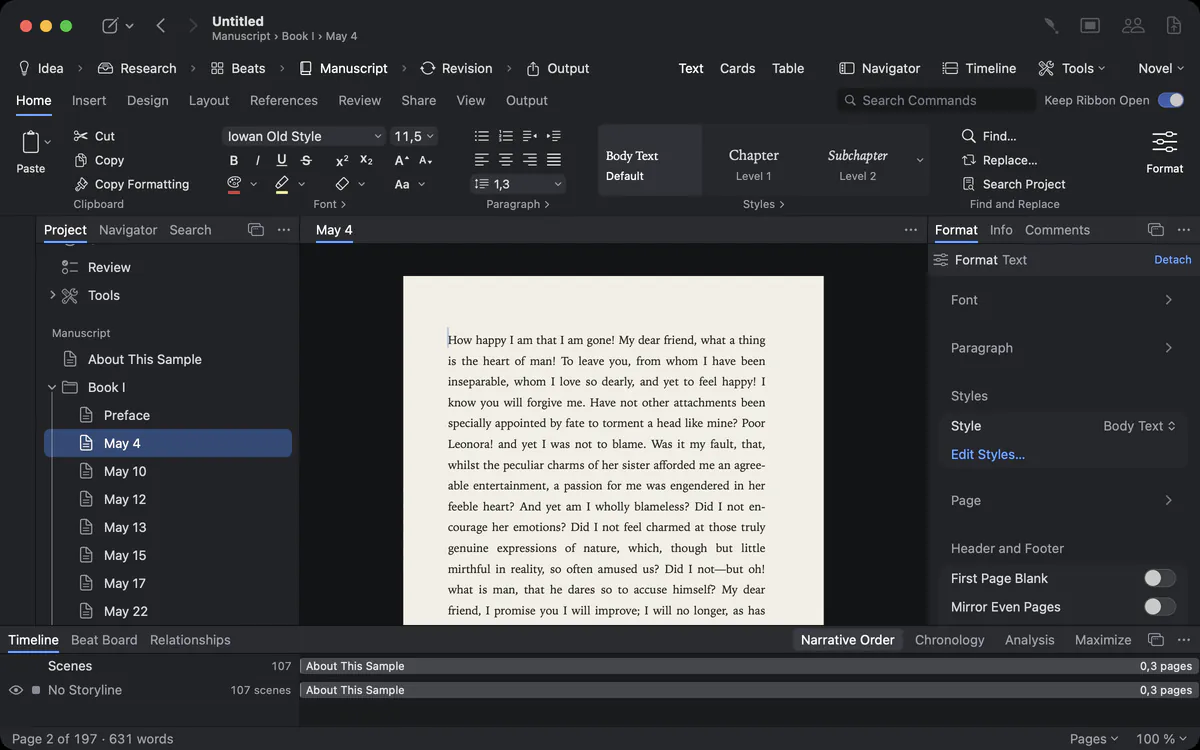
The last mile should not need another app
The draft is done. Now you export to Word to fix the headings, the running heads, the table of contents and the line that hangs alone at the top of page 212 – and every later change means doing it again.
When writing and layout live in two programs, every correction after the export is made twice or lost. Goethe Write sets the page while you write, and PDF, print and Word read the same pages.
How Goethe Write solves it
- The ribbon has nine tabs with fixed places: Home, Insert, Design, Layout, References, Review, View, Screenplay and Output. Keep Ribbon Open pins it.
- The Format inspector beside the text shows font, paragraph, style and page for whatever you select – and shows when a paragraph departs from its style.
- Search Commands (⌃⌘K) finds any command of the ribbon and the menus by name and says where it lives.
- The Format column can be detached as a floating palette, even onto a second display.
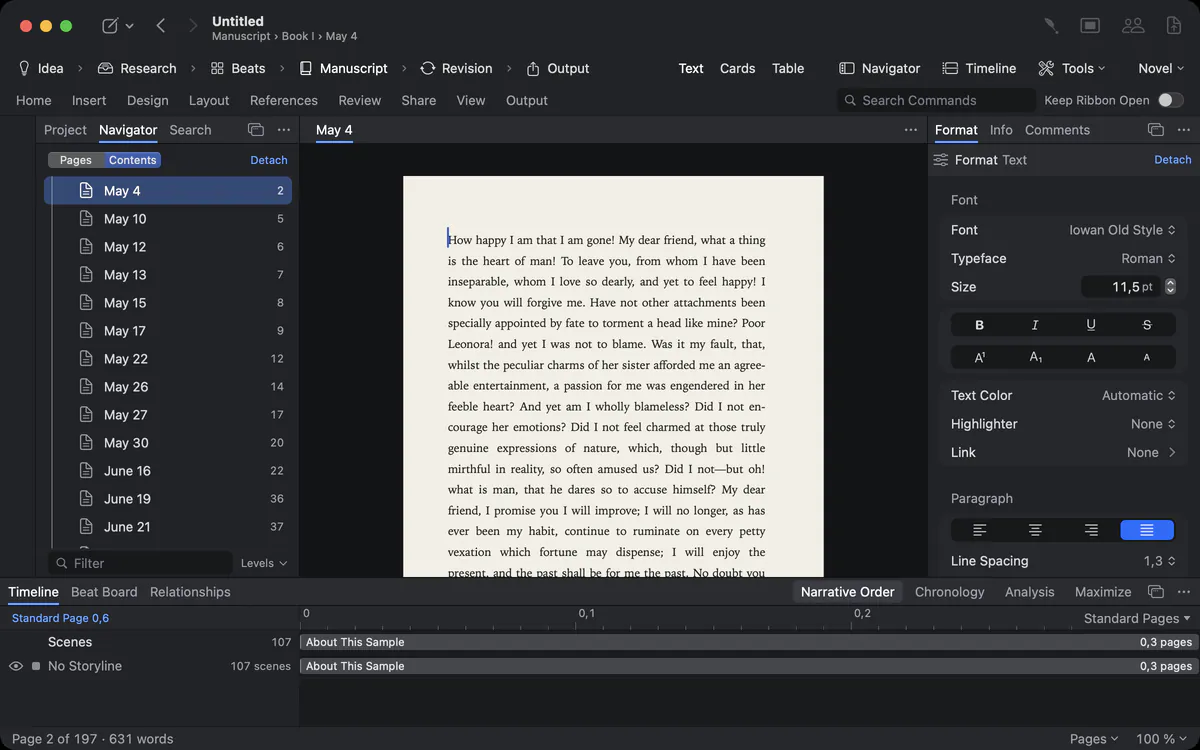
Character formats that real books use
The book design calls for small caps in the first line of every chapter and slightly opened spacing in the running head. Your writing app knows bold and italic.
Under Format ▸ Font and in the Home tab:
Because these are formats, they travel: into the PDF, into print, into Word and into the e-book.
Paragraphs that break where they should
A heading at the bottom of a page with its first line on the next. A widow on top of page 87. A table of contents whose dots you typed by hand.
Under Format ▸ Paragraph and in Layout ▸ Indent and Spacing:
- Break: Keep with Next holds a heading with the paragraph after it; Keep Lines Together keeps a paragraph on one page; Page Break Before starts a paragraph on a new page; Widow and Orphan Control prevents single lines at the top or bottom of a page.
- Tab Leader: dots, dashes or a line up to a tab stop – for a table of contents, a list of parties or a price list.
- Line spacing (single, 1.15, 1.5, double, exact), space before and after, indents and hyphenation.
All of this is part of the style, so a chapter heading keeps with next everywhere at once. Edit a style once with Edit Styles…, and every paragraph follows.
Pages that look finished
The editor’s copy should say DRAFT, the reviewer’s copy should carry her name, and the logo should sit pale behind every page.
Layout ▸ Page Setup… sets paper (US Letter, A4, A5, book sizes and your own), margins, mirrored margins, binding allowance, header, footer and page numbers. Save a page as a preset for the next project.
Watermarks in three clicks
- In the Design tab, group Page Design, open the arrow at Watermark, or choose Format ▸ Page ▸ Watermark.
- Choose DRAFT, CONFIDENTIAL, SAMPLE, COPY, DO NOT COPY, ADVANCE READING COPY or COPY FOR ‹Recipient›. The language follows the project.
- For your own text or a picture, open Custom Watermark…: type, angle, size and transparency, with a preview of the page.
- PDF per Recipient in the Output tab writes one PDF for each name on a list, with that name in the watermark.
The watermark stands on screen, in print, in the PDF and in Word. For covers, title pages and posters, the Design Studio (Design ▸ Design…) lays out text, shapes and pictures on a page of their own, with layers, guides and snapping.
Output that stays protected
You send a manuscript to three publishers and would rather it was not edited, printed or passed on without asking.
The Protect group in the Output tab writes:
- a PDF with Password: a password to open it and, separately, a second password that guards printing and copying;
- a Protected Word File that opens for reading, for comments or for tracked changes only;
- for both, on request, a file without your name in its properties and without names and times in comments and changes.
The passwords are asked for each output and kept nowhere – not in the project, not on your Mac. Word’s protection prevents editing by mistake; a password belongs to the PDF.
Styles in depth
A style is a promise that every chapter heading looks the same. It should hold after the publisher changes the font.
A paragraph style carries font, size, spacing, indents, alignment, breaks and the next style; a character style carries the look of a word or a phrase. The gallery in the Home tab and the shortcuts apply them; Edit Styles… changes them for the whole project. The Format inspector shows when a paragraph departs from its style, and Match Styles in the Design tab takes a look you set by hand back into the style. Styles go into Word as Word styles, so an editor working in Word sees Chapter and Body Text, not a pile of manual formatting.
Questions about typesetting
Does Goethe Write have small caps and character spacing?
Yes. Small Caps and All Caps are character formats, and Character Spacing offers Tight, Normal, Loose, Very Loose or an exact value. Both go into PDF, print and Word.
Can I keep a heading with the next paragraph?
Yes. Keep with Next, Keep Lines Together, Page Break Before and Widow and Orphan Control are under Format ▸ Paragraph ▸ Break and can be part of a style.
Can I make dot leaders for a table of contents?
Yes. Tab Leader sets dots, dashes or a line before a tab stop.
Will the Word file look like my pages?
The Word export carries styles, headers, footers, page numbers, footnotes, the watermark and the page setup, so Word opens the document with the same structure.
Can I protect a Word file against editing?
Yes. Protected Word File opens for reading, for comments or for tracked changes only. It prevents editing by mistake; for a real password, use PDF with Password.
In the handbook
- Page setup, design, printingSet up the page in Goethe Write: paper, margins, header, footer and page numbers, page templates, a watermark, the Design Studio for covers, and printing.
- Writing: text, formatting, paragraphsWrite and format text in Goethe Write: views, fonts, paragraphs, lists, styles, breaks, tables, pictures, links, spelling, find and replace across the project.
- Output and exportExport a work as PDF, Word, EPUB, Markdown or RTF, a screenplay as Final Draft, Fountain or PDF; choose the look, scope and contents, and import Word files.
Set it once. Keep writing.
Try Goethe Write free for 14 days on your Mac and see your book on real pages.
Try it free for 14 days on your MacRead the chapter on page setupSee pricing