Legal writing software for Mac – briefs, opinions and papers with structure
The Law type of work in Goethe Write is built for briefs, legal opinions, law school papers and journal articles: numbering that keeps itself right, the facts of the case beside the text, exhibits that count themselves.


Numbering that never needs renumbering
You move one point of your analysis one level up – and spend the next twenty minutes renumbering A., I., 1., a) and aa) by hand.
Legal outlines in the German tradition count in six levels: A., I., 1., a), aa) and (1). Kept by hand, they break with every rearrangement, and the table of contents breaks with them.
How Goethe Write solves it
- Write the heading as a paragraph, for example Claim for payment of the purchase price.
- Choose Home ▸ Paragraph ▸ Legal Numbering, or Format ▸ Lists ▸ Legal Numbering. The paragraph gets the right number for its place.
- Press ↩ and write the next point. It keeps counting.
- Increase Indent (⌥⌘]) moves a point one level down, Decrease Indent (⌥⌘[) one level up. Everything after it counts along.
- Renumber counts everything again after a large rearrangement – mostly it happens by itself.
The Legal Opinion template is built on the four steps of the opinion style – statement of the issue, definition, subsumption, result – with the sentences to write over at each point. Other templates: Complaint, Law School Paper and Journal Article. The texts inside the templates are in German today; the names of the templates are translated.
Margin numbers, citations, exhibits
The court cites paragraph 12 of your brief, and in your copy paragraph 12 has moved.
Switch on Layout ▸ Header and Footer ▸ Margin Numbers: every paragraph gets its number in the margin, on screen and in the export, so that a reader can refer to “para. 12”.
Exhibits are files in the exhibits folder of your research. They count themselves in their order – Exhibit K 1, K 2 and so on – and you set the letter under Terms and Values ▸ References ▸ Exhibit Prefixes. Insert a reference with References ▸ Citations and Cross-References ▸ Exhibit. Rearrange the exhibits, and every reference in the text follows.
Footnotes, citations, cross-references and evidence sit in the same group of the References tab. When you cite a statute such as “§ 823 Abs. 1 BGB” or “Art. 6 Abs. 1 lit. f DSGVO”, Goethe Write recognises it and lists the statutes your text cites under Inspector ▸ Statutes. A table of contents with up to four levels and a bibliography are added in the export (References ▸ Lists).
The case beside the brief
The facts are in the file, the dates in a spreadsheet, the arguments in your head – and the brief has to hold all of them without contradiction.
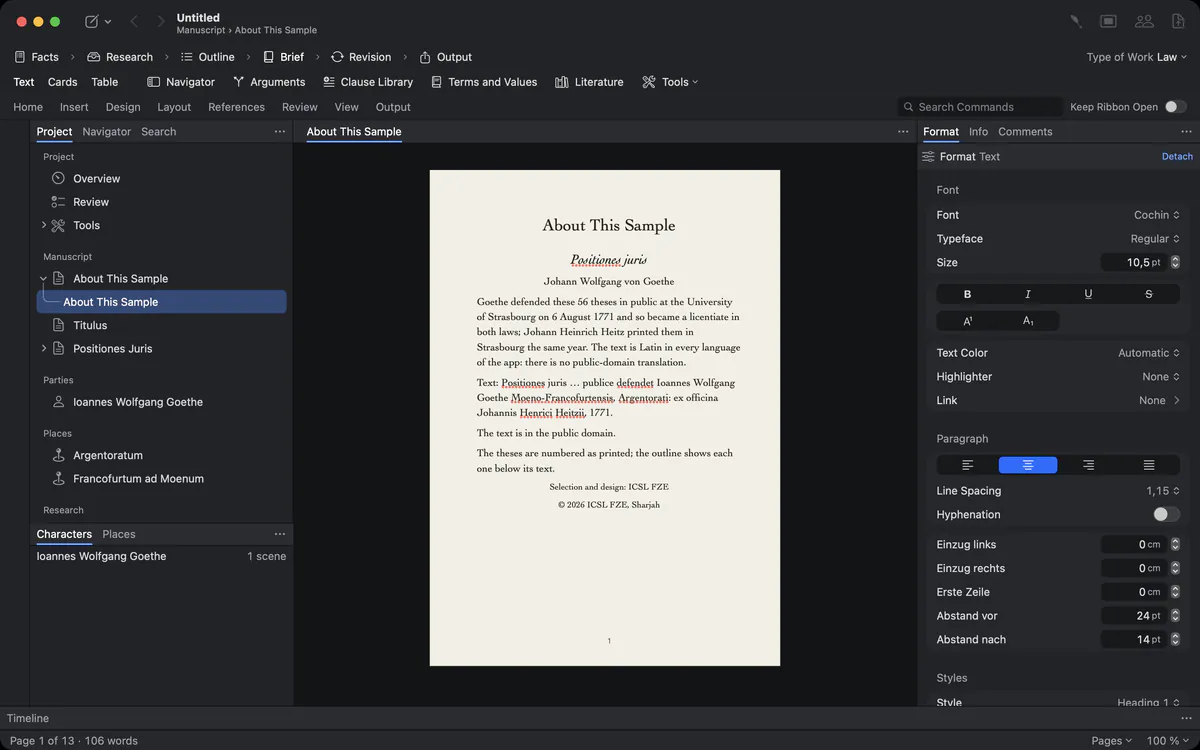
The Law type of work brings its own tools in the sidebar:
A value such as the purchase price is inserted as a field: it appears in the sentence, underlined with a dotted line, and if the amount changes, it changes everywhere. A clause from the library is inserted as text you can adapt.
An assistant that does not invent facts
An AI that “improves” a paragraph and quietly turns 48,000 € into 45,000 € is worse than no AI.
Goethe, the writing assistant, has jobs for legal texts: Check Opinion Style checks issue, definition, subsumption and conclusion and leaves comments; Suggest Evidence marks statements that need evidence; Check Text looks for differing amounts, dates, names and terms. Goethe is instructed not to invent facts, names, dates, amounts, quotations, statutes or judgments. Before anything goes into your text, Goethe Write itself compares numbers, amounts, dates, sections of statutes, file numbers and quotations, and warns you – “Changed: 48,000 € → 45,000 €”.
Confidential briefs or client notes can be locked with Entry ▸ Hide from Goethe. Goethe never reads them. And without your own key, Goethe Write stays completely offline.
Hand it over safely
The opposing counsel should be able to read the draft, not edit it, and the copy for the client should say so on every page.
Under the Output tab, the Protect group writes a PDF with Password (to open, and separately for printing and copying) and a Protected Word File that opens for reading, comments or tracked changes only, both optionally without your name in the file’s properties. A watermark such as CONFIDENTIAL or COPY FOR ‹recipient› stands behind every page, and PDF per Recipient writes one copy per name. More on typesetting and protection.
Values and clauses in practice
The purchase price appears eleven times in the brief. The client corrects it the night before the deadline.
Enter the amount once under Terms and Values, then insert it as a field wherever the brief names it. Each occurrence shows the value, underlined with a dotted line so you can tell it apart, and a change in one place changes all eleven. Defined terms work the same way. The Clause Library keeps recurring clauses – a reservation of rights, a standard request – with their versions, and inserts them as ordinary text you adapt to the case.
Questions about legal writing
Does Goethe Write number legal outlines automatically?
Yes. Legal Numbering counts A., I., 1., a), aa) and (1) and follows every change of level or order.
Is it only for German law?
The legal numbering, the templates and the recognition of statutes follow German practice today. Margin numbers, exhibits, footnotes, fields, the case file and protected output work for any legal writing.
Can I keep client data away from the AI?
Yes. Hide a text or a whole folder from Goethe with Entry ▸ Hide from Goethe. Goethe never reads it, and without a key Goethe Write sends nothing at all.
Can I send a PDF that cannot be edited or copied?
Yes. PDF with Password protects opening and, with a second password, printing and copying. The passwords are asked for each output and stored nowhere.
Can I use margin numbers in a legal opinion?
Yes. Layout ▸ Header and Footer ▸ Margin Numbers numbers the paragraphs in the margin, on screen and in the export.
Can amounts and dates be kept consistent across a brief?
Yes. Insert them as fields from Terms and Values. Change the value once, and every occurrence follows.
In the handbook
- Legal and non-fiction writingBriefs, legal opinions and non-fiction in Goethe Write: arguments, case file and chronology, clauses and values, footnotes, citations, indexes, bibliography.
- Page setup, design, printingSet up the page in Goethe Write: paper, margins, header, footer and page numbers, page templates, a watermark, the Design Studio for covers, and printing.
Read next
- TypesettingStyles, small caps, character spacing, ligatures, keep with next, widow control, tab leaders, watermarks and protected PDF and Word output.
- Goethe, the AI assistant
 AIAn optional writing assistant with your own API key: revise, shorten, check, answer questions. Every change tracked, nothing sent without your yes.
- Privacy and securityFiles on your device, no tracking, end-to-end encryption for sharing and read links, an AI that sends only what you choose to the provider you chose.
A brief that keeps its structure.
Try Goethe Write free for 14 days on your Mac and open the legal samples under Help ▸ Samples.
Try it free for 14 days on your MacRead the chapter on legal writingSee pricing