Outline software for writers – index cards, navigator and Beat Board on the Mac
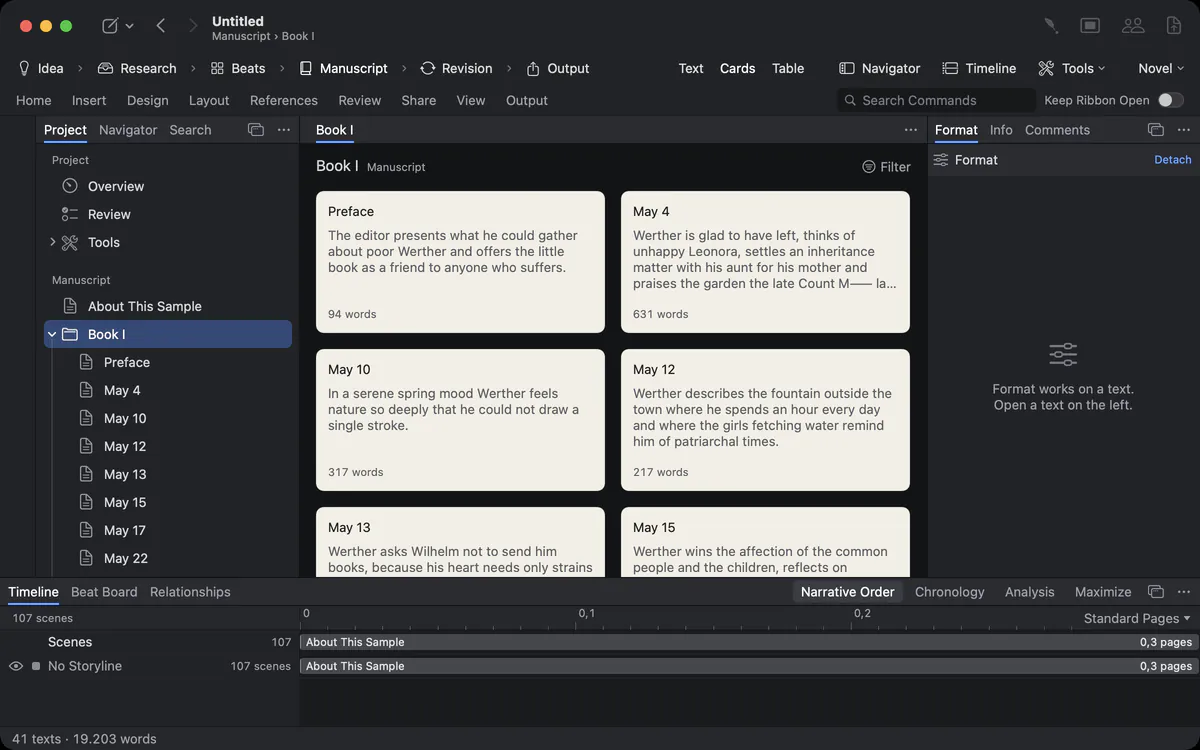
The outline holds your work in parts, chapters and scenes. Drag one to a new place, and the manuscript follows. When you need distance, look at the same scenes as cards, as a table, on the Beat Board or in the navigator.


Lost in your own structure
Somewhere around chapter 30 you no longer know which scene belongs where, which ones are unfinished and where the second storyline went.
A long work grows faster than anyone can hold in their head. Without a structure you can see and touch, the book becomes a pile of files and a list of good intentions.
How Goethe Write solves it
- The sidebar shows the project: parts and chapters as folders, scenes and sections as texts, research and characters below.
- Each entry has a status (Idea, Draft, Revised, Done …), a label in colour and a synopsis of one or two sentences.
- Outline Guides draw fine lines that show which scene belongs to which chapter – switch them on in View ▸ Outline Guides.
- Drag an entry, and the manuscript follows. Merge, Split and Duplicate are in the context menu; deleted entries wait in Recently Deleted.
One navigator for the work you have open
You want to jump to page 212, to the heading “The Contract” or to scene 48 – without scrolling through everything.
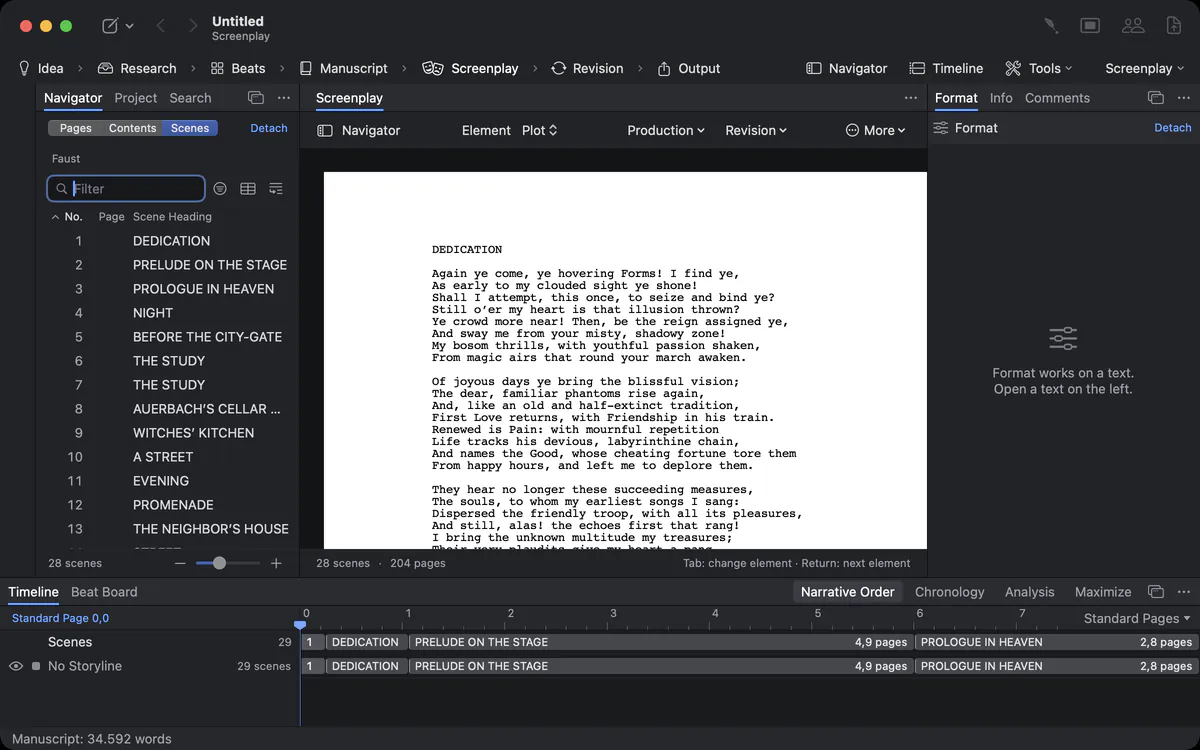
The Navigator (⌃⌘N) shows the open work three ways: Pages as thumbnails, Contents by heading and Scenes of a screenplay with number, page and length. A filter narrows the list as you type, and a click jumps there. Drag a chapter in Contents, and you have moved it in the text.
The navigator has two homes. Docked, it is a tab in the left panel. Detached with View ▸ Detach Navigator, it is a window of its own that you can move to a second display; Goethe Write remembers where it stood. In focus mode a detached navigator stays beside the text column and never covers the line you are writing.
Cards, table and Beat Board
Sometimes you need to see the story from a distance, the way you would spread index cards on a table.
The middle of the window has three views of the same entries, in the View tab or the head of the text:
A card is the text itself, and a row of the table is the card. Nothing is kept twice, so nothing can drift apart. Nonfiction books and legal projects have an Outline phase in place of the Beat Board.
Phases from idea to output
At the idea stage you don’t need the export settings, and in the final revision you don’t need the beat board.
Each project has a Type of Work – Novel, Nonfiction Book, Law or Screenplay – and the head of the window shows its phases: for a novel Idea · Research · Beats · Manuscript · Revision · Output, for a nonfiction book Outline in place of Beats, for law Facts and Brief. Each phase brings the tools it needs and keeps the others out of the way. Under Tools… you switch tools on or off for the project.
Collections, targets and keywords
You want to revise every scene of one storyline, or every chapter your editor flagged, without moving them.
Collections gather entries from all over the project – for a storyline, a character or a revision pass – while the entries stay where they are. Keywords, custom fields and In Export (whether an entry goes into the output) belong to each entry. Targets for the project, the day and a single text keep the work moving.
Bring an outline with you
Coming from Scrivener? Its binder becomes the outline, with titles, synopses, notes, labels, status, keywords, collections and snapshots. A whole work in one file becomes chapters through Import Work. And the outline leaves again as OPML for outliners and mind-mapping apps, or as a scene list in CSV and Excel.
The table in depth
Which chapters have grown too long? Which scenes are still drafts?
The table shows the same entries as rows: title, status, words, the label, the synopsis two lines high, and in story projects point of view, place and time, which you type straight into the cells. Conflict, keywords, characters, the progress toward a target and your custom fields can be columns too. Click a heading to sort; a second click reverses the order, a third restores the order of the outline. Sorting only changes the display – the outline stays as it is. Sort by Words to find the scenes that have grown too long; sort by Status and the drafts stand together. A filter narrows the cards and the table to a status, a label or a word.
Questions about outlining
Can I rearrange chapters by dragging?
Yes – in the sidebar, on the cards, in the navigator’s Contents and on the timeline. The manuscript follows each move.
Is a card a copy of my scene?
No. A card, a row of the table and an entry of the outline are the same scene. Change the synopsis on the card, and it is changed everywhere.
Can I add my own columns to the table?
Yes. Custom fields become columns of the table, and you can sort and filter by them.
Can I export the outline?
Yes. As OPML with folders, texts, synopses, status and colour, and as a scene list in CSV or Excel.
Can I sort the table without changing my outline?
Yes. Sorting only changes the display; a third click on the column heading restores the order of the outline.
Can I detach the navigator?
Yes. View ▸ Detach Navigator makes it a window of its own that you can move to a second display.
In the handbook
- Outline and structure of the projectOrganise a project in Goethe Write: texts, folders and collections, status, label and synopsis, cards and table, phases and tools, importing Word and Scrivener.
- Planning the storyPlan the story with characters and places, the relationship map, threads, knowledge and story rules, beats on the Beat Board and the analysis of your scenes.
Plan the way you think.
Try Goethe Write free for 14 days on your Mac. The handbook’s outline chapter shows every view.
Try it free for 14 days on your MacRead the outline chapterSee pricing