Distraction-free writing on the Mac – focus mode, writing windows and panels that stay out of the way
Long work needs long stretches of attention. Goethe Write puts the page in the middle when you want quiet, and spreads your tools over windows and displays when you need them.


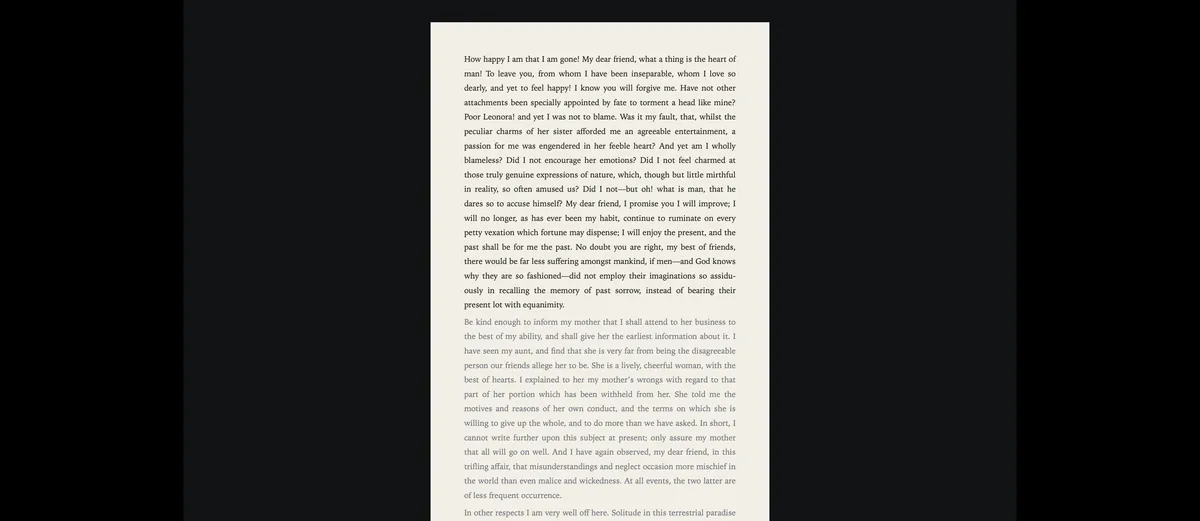
Everything on screen asks for attention
You sit down for the hardest scene of the book. The sidebar shows 214 entries, three badges and a word count that is behind. Ten minutes later you are tidying the outline.
Useful tools become noise when you need to write. Most apps answer with a “full screen” that still blinks, still shows tooltips and still slides panels in and out.
How Goethe Write solves it
- Open the text you want to write.
- In the View tab, group Writing, click Focus – or choose View ▸ Focus, or press ⇧⌘↩.
- The window goes full screen. Sidebar, inspector, bottom panel, toolbar and status bar disappear. Only the text stays.
- Press Esc or ⇧⌘↩ again, and your workspace returns exactly as it was.
Focus is quiet by rule, not by accident:
- Nothing moves – even if Reduce Motion is off on your Mac.
- No tooltip opens by itself, and controls do not light up when the pointer passes.
- Notices from others wait. In a shared project, messages and requests wait until you leave focus, unless something needs you now, such as a save that failed. Even “Everyone here” does not pull you out of a sentence.
Typewriter and dimming
Writing near the bottom edge of the window, you slowly lean forward without noticing.
Typewriter keeps the line you are writing at the same height, a little above the middle of the window; the text scrolls up beneath you. Dim lightens everything except the paragraph you are writing – or, in Settings ▸ Writing, only the sentence or the line. Dimming is a screen aid only: print, PDF and Word are unchanged.
Format and navigator without leaving focus
In the middle of focus you need the style of a heading or the next chapter – and leaving focus breaks the spell.
Press ⌥⌘I for the inspector or ⌃⌘N for the navigator. In focus they appear as floating windows beside the text column, never on top of it. If the line you are writing runs under one of them, it steps back to a faint trace and lets clicks through; when the line is free, it returns without any motion. After focus they stay detached, as you chose; View ▸ Dock Format or Dock Navigator puts them back.
A writing window of its own
You want chapter 3 open while you write chapter 17 – not as a tab you keep switching, but side by side.
How Goethe Write solves it
- Select a text in the sidebar and choose Open in New Window. It opens in a writing window of its own, beside the project window.
- Each writing window has its own text, its own scroll position and, if you like, its own focus.
- The Second Pane (⌥⌘↩) shows a second text, a PDF, a picture or a source beside the text in the same window; Scroll in Sync keeps two versions aligned.
- The Format column and the Navigator can be detached as windows and moved to a second display. Goethe Write remembers where they stood and never lets a panel cover the text.
Ready-made arrangements set this up in one step: Writing, Research and Correction in the View tab.
Zoom, paper and clean view
Your eyes are tired at eleven at night, and the page is too bright.
Zoom the page, choose the paper the page is drawn on, switch the window to light or dark, and turn on Clean View to hide marks and guides. Always Dark Timeline keeps the timeline dark in a light window. Every setting is a click in the View tab, and Goethe Write remembers it.
Targets without pressure
You want to know whether today counted, without a counter staring at you.
The daily target works out what is left from your deadline and writing days. The status bar shows it quietly, and in focus the word count opens as a sheet only when you ask for it. The history keeps what you wrote, day by day.
Arrangements for each kind of work
Writing wants the text big. Research wants the source beside it. Correction wants comments and changes in view.
The View tab has three ready-made arrangements of the window: Writing (the text, little else), Research (the text with a source in the second pane) and Correction (comments and changes beside the text). Maximize gives the bottom panel – the timeline, for example – the whole middle of the window and back again. If you want full screen without focus, choose View ▸ Enter Full Screen (⌃⌘F): the sidebar and status bar stay where they are.
Every one of these is reachable from the keyboard: ⇧⌘↩ for focus, ⌥⌘↩ for the second pane, ⌥⌘I for the inspector, ⌃⌘N for the navigator, and Search Commands (⌃⌘K) for anything you cannot remember.
Questions about focus and windows
Does focus mode block notifications from collaborators?
Yes. In focus, notices from others wait until you leave it, unless something needs you right away, such as a save that failed.
Can I use the inspector in focus mode?
Yes. The inspector and the navigator appear as floating windows beside the text column and never cover the line you are writing.
Can I open two chapters in separate windows?
Yes. Open in New Window opens a text in a writing window of its own. The second pane shows another text, a PDF or a picture beside the text in the same window.
Can I move panels to a second display?
Yes. Detach the Format column or the navigator, and move the window wherever you like. Goethe Write remembers its place.
Does Typewriter mode work outside focus?
Yes. Typewriter keeps the current line at the same height in the normal window and in focus; it is a setting for the whole Mac.
Does dimming change my document?
No. Dimming is only on screen. Print, PDF, Word and the file itself are unchanged.
How do I leave focus?
Press Esc while the cursor is in the text, press ⇧⌘↩ again, or choose View ▸ Focus.
In the handbook
- Writing aids: focus, typewriter, targetsFocus, typewriter mode and dimming, daily targets and word count, guides, ruler, marks and paper colour, zoom and split view for calm, steady writing.
- The workspace: menu bar, ribbon, sidebarThe menu bar, the nine ribbon tabs, command search, the sidebar, Inspector, Navigator, panels and the Format palette of Goethe Write, explained one by one.
Write. Just write.
Try Goethe Write free for 14 days on your Mac and press ⇧⌘↩.
Try it free for 14 days on your MacRead the chapter on writing aidsSee pricing