Nonfiction writing software for Mac – your research right beside the text
A nonfiction book stands on its sources. Goethe Write keeps PDFs, scans, pictures and notes in the same project as the chapters, lets you quote with page numbers, and makes scanned pages searchable on your Mac.


Research in one place, not in twenty windows
The PDF is in Downloads, the scan on the desktop, the notes in another app, and the quote you need is on a page you no longer remember.
Most nonfiction is written between windows: the text in one program, the sources in a PDF reader, the notes somewhere else. Every switch costs attention, and every source that lives outside the project can get lost or detached from the passage that relies on it.
How Goethe Write solves it
- Choose File ▸ Add Files to Research… and add PDFs, pictures and documents, several at once.
- They appear in the Research section of the sidebar. A PDF opens in Goethe Write’s own reader; a picture opens beside your notes.
- Open the Second Pane with ⌥⌘↩ (or View ▸ Show Second Pane). Your chapter stands on the left, the source on the right.
- The arrangement Research in the View tab sets this up in one click.
Research material stays as it is and never becomes part of the manuscript by accident. You write notes on a file in the Inspector ▸ Notes – your own words about the source, kept separate from the source itself.
Quote with the page number, not from memory
You quote a sentence and two weeks later you cannot say on which page of which edition it stood.
In the PDF reader you highlight passages and take a quote into the text. Goethe Write remembers where it came from, with the page. Sources can be cited in footnotes, and in academic and legal projects the export adds a bibliography after the text (References ▸ Lists ▸ Bibliography). A table of contents with up to four levels comes with it. Literature can be exported for LaTeX as BibTeX, together with the text, for Overleaf and every TeX installation.
Make scanned pages searchable – on your Mac
The archive sent you 40 scanned pages. You can read them, but you cannot search them, highlight them or quote them.
A scanned PDF consists of pictures of pages. Goethe Write reads the text in those pictures with the Mac’s own text recognition, and nothing leaves your Mac for it.
How Goethe Write solves it
- Open the scanned PDF in the research. A line under the bar says that pages are scanned.
- Click Recognize Text. A progress bar shows the page (“Recognizing page 3 of 12…”); you can keep working, and Cancel stops it.
- At the end Goethe Write reports how many pages and words it recognised, and the PDF is searchable.
- The recognised text lies invisibly in the scanned pages: you can now search, select, highlight and quote with page numbers. Recognized Text opens the text beside the scan, so you can compare.
Photographs of book pages or letters can be recognised too (PNG, JPEG, HEIC and other image types); the text then stands as a text of its own next to the picture. If you recognise again, the earlier wording is kept as a snapshot – no correction is lost. Text recognition is not part of the AI assistant and needs no key.
An outline instead of beats
Your book has a clear argument, but the chapters keep growing sideways.
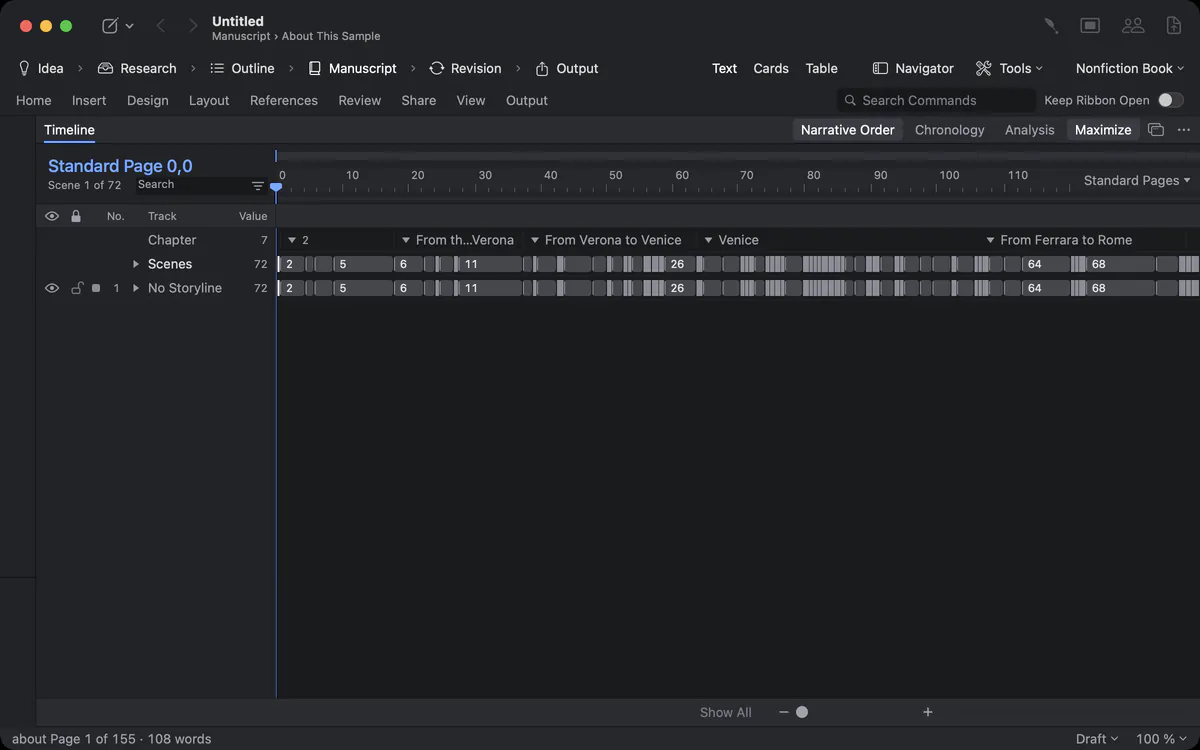
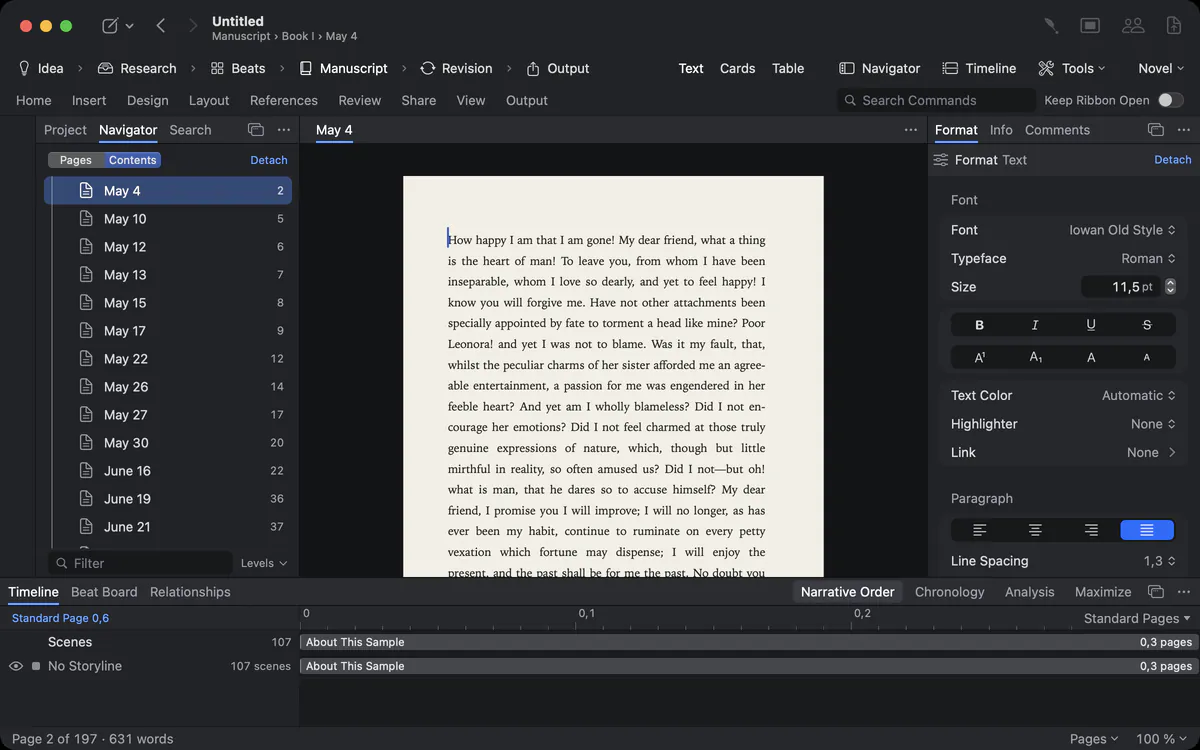
The Nonfiction Book type of work gives you phases that fit the genre: idea, research, outline, manuscript, revision and output. Instead of a beat board it has an outline of chapters and sections, each with a synopsis that says what the chapter has to prove. The navigator shows the contents by heading; drag a section and the text follows. Chapter styles keep part, chapter and section consistent through the book.
For a work told in time – a biography, a history, a travel book – the timeline shows the dated texts in narrative order or in chronology. Goethe’s Italian Journey, one of the samples under Help ▸ Samples, shows how that looks.
From chapter to finished file
The publisher wants Word, the conference wants PDF, and the e-book shop wants EPUB.
From one project you export a PDF, a Word file with headings and footnotes, an EPUB, Markdown, HTML, OpenDocument or LaTeX. Fields, cross-references and footnotes are resolved in the export. See import and export for every format.
Footnotes, cross-references and fields
“See chapter 7, p. 143” – and after the next revision it is p. 151.
A cross-reference points to a heading, a footnote or a figure and shows its current number or page in the export. Footnotes stay with their text on screen, in the PDF and in Word. Fields show a value you keep in one place – a date, a name, a figure – and update everywhere when it changes. Together they keep a long nonfiction book correct through every revision.
Questions about nonfiction and research
Does text recognition send my scans anywhere?
No. Goethe Write uses the Mac’s own text recognition. The scan and the recognised text stay on your Mac, and no key or account is needed.
Can I quote from a PDF with the page number?
Yes. Highlight the passage in Goethe Write’s PDF reader and take it into your text as a quote; Goethe Write keeps the source and the page.
Can I keep my sources next to the text while I write?
Yes. The second pane shows a PDF, a picture or another text beside the text you are writing, and the Research arrangement in the View tab sets this up in one click.
Does Goethe Write make a bibliography?
In academic and legal projects the export can add a bibliography after the text and a table of contents with up to four levels. The LaTeX export includes the literature as BibTeX.
Which images can text recognition read?
PNG, JPEG, HEIC and other common image types, as well as scanned pages inside a PDF.
Can I keep a source and two versions of a chapter in view?
Yes. The second pane shows a source beside the text, and Scroll in Sync keeps two texts aligned while you compare.
In the handbook
- Legal and non-fiction writingBriefs, legal opinions and non-fiction in Goethe Write: arguments, case file and chronology, clauses and values, footnotes, citations, indexes, bibliography.
- ResearchKeep research beside the text: add files and pictures, read and mark PDFs, recognise text in scans and link passages of your sources to the manuscript.
Read next
- Legal writingLegal numbering that renumbers itself, margin numbers, exhibits, a case file with chronology, clauses and values – and an AI that is told not to invent facts.
- Outline and structureAn outline you drag, a navigator for pages, contents and scenes, index cards, a table with your own columns, collections and a Beat Board.
- Recognition on import
 No AI · offlineImport Work splits a finished work into chapters and finds people, groups and places on your Mac – without AI, with a preview, and undo in one step.
Bring your sources home.
Try Goethe Write free for 14 days on your Mac, or read the research chapter of the handbook.
Try it free for 14 days on your MacRead the research chapterSee pricing