

Goethe Write
EN

A Scrivener alternative for the Mac that takes your project along.

If you are looking for a Scrivener alternative on the Mac, the first question is what happens to the books you already have. Goethe Write opens Scrivener 2 and 3 projects with File ▸ Import ▸ Scrivener Project…: the binder becomes the outline, and your texts keep their formatting, footnotes, notes and snapshots. What changes is the way you write – on real pages, instead of compiling at the end.

Download on the Mac App StoreMac · 14 days freeDownload on the App StoreiPhone and iPad · free

The short answer.

Goethe Write is a Mac app for novels, non-fiction and screenplays. It imports a whole Scrivener project in one step, shows the page as it will print while you write, and adds a full screenplay editor, a timeline and working together with others. On the Mac it is a one-time purchase of US$79.99 with 14 days free; it is available now on the Mac App Store.

It is not the right switch for everyone. If you write on Windows, need Kindle or OpenOffice export, or rely on syncing through Dropbox, Scrivener still does things Goethe Write does not. This page is about moving over: what to look for, what comes along, and where you will find your habits again. The side-by-side table is on Goethe Write and Scrivener.

Goethe Write and Scrivener compared Import and export

What to look for in a Scrivener alternative.

Writers rarely leave Scrivener because of one missing button. They leave because the way they work has changed. Before you pick any app, check it against the reason you are looking.

  • Your existing projectsAn alternative is only an alternative if years of chapters, notes and research come with you. Goethe Write reads the .scriv package itself, not just an exported Word file.
  • Seeing the page while you writeIn Scrivener you write in an editor and compile the finished document. In Goethe Write you write on pages with styles, footnotes, headers and footers, so the manuscript looks like the result the whole time.
  • A screenplay in the same projectIf a novel turns into a script, Goethe Write has a screenplay editor with Final Draft’s page breaks, scene numbers and revisions, and it opens and saves .fdx and Fountain files.
  • Other people in the projectEditors, co-authors and test readers can join a project or read it in a browser. Only the person who invites needs Goethe Cloud; guests pay nothing.
  • Your files stay readableGoethe Write saves projects in an openly documented format. Even without a purchase, every project stays readable, searchable, printable and exportable.

Moving a Scrivener project, step by step.

The import builds a new Goethe Write project and leaves your Scrivener project untouched, so you can try it with your real book and keep both.

  • Prepare the projectUnpack a ZIP backup in the Finder first. A project from Scrivener 1 you open once in Scrivener 3 and save. If the project lies in iCloud Drive or another cloud folder, wait until every file has downloaded.
  • Import itChoose File ▸ Import ▸ Scrivener Project… and pick the project with the .scriv ending. Goethe Write builds a new project and opens it.
  • Check the outlineThe binder is now the outline in the sidebar, with titles, synopses, notes, labels, status and the In Export setting – Scrivener’s “Include in compile”.
  • Read through the textsFormatting and footnotes come along; footnotes from the text and from the inspector both become real footnotes. Annotations and comments go into the notes of the part, so nothing is lost.
  • Find your extrasCustom fields, keywords in their order, collections you filled by hand, snapshots, the manuscript target and the deadline are carried over. PDFs, pictures and web archives arrive as files in Research. Saved searches stay behind, because their rules belong to Scrivener.

Importing creates a new project, so it needs the 14-day trial or the purchase on the Mac. Without either, your projects stay readable and exportable.

From compile to pages.

The biggest change after Scrivener is that there is no separate compile step to learn. Styles such as Chapter, Subchapter and Block Quote shape the page as you type, and footnotes sit at the foot of the page where they will print.

When the manuscript has to leave the Mac, File ▸ Export… (⌥⇧⌘E) opens one dialog with a live preview and seven output formats: Standard Manuscript, Paperback, E-Book, Word, PDF, Markdown and Rich Text. Switching from Standard Manuscript to Paperback changes the whole page and leaves your text alone.

Manuscripts Typesetting

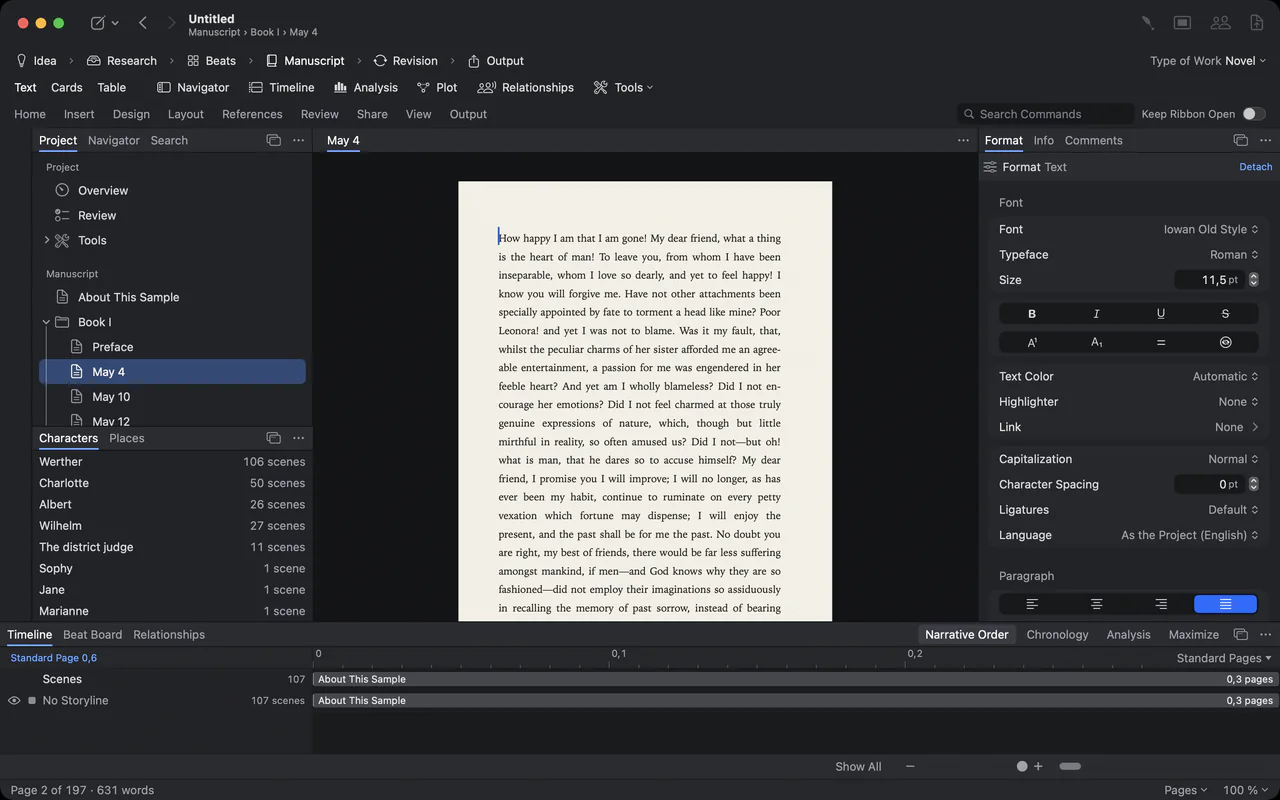
A letter from The Sorrows of Young Werther on a cream manuscript page, the project with its books and letters on the left, the Format panel on the right
The style gallery: Body Text, Chapter, Subchapter, Section and Block Quote, each shown in its own type

The style gallery: Body Text, Chapter, Subchapter, Section and Block Quote, each shown in its own type

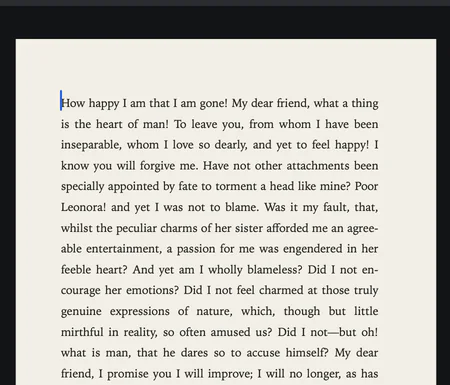
Close-up of a typeset manuscript page in a book face, justified

Close-up of a typeset manuscript page in a book face, justified

Your Scrivener habits, and where they live now.

Most of what you do every day in Scrivener has a counterpart. The names differ; the work is the same.

Scrivener names as Scrivener uses them. Scrivener is a trademark of its owner; Goethe Write is not affiliated with it.
In ScrivenerIn Goethe WriteWhere to find it
BinderOutline in the sidebarCreated by the import
CorkboardCards⌘2
OutlinerTable with status, label and words⌘3
Composition ModeFocus: only the pageView ▸ Focus (⇧⌘↩)
Split editorSecond Pane for a text, PDF or sourceView ▸ Show Second Pane (⌥⌘↩)
SnapshotsSnapshots, with comparisonEntry ▸ Save Snapshot
Project and session targetsManuscript target, deadline and daily targetOverview, ⌘4
Research folderResearchFile ▸ Add Files to Research…
CompileExport with output formatsFile ▸ Export… (⌥⇧⌘E)
ScriptwritingScreenplay editor with .fdx and FountainScreenplays

The whole story at a glance.

Scrivener keeps your texts in order. Goethe Write also shows how the story moves. Go ▸ Timeline (⌘5) sets every scene as a clip, as wide as the scene is long, on one track per storyline, character and place. The Cards view lets you rearrange scenes like index cards, and the relationship map shows who belongs to whom.

None of this is required. If you simply want to write, the tools wait until you open them.

The timeline Outline and cards Take the tour

A slow pan across the timeline of the Italian Journey
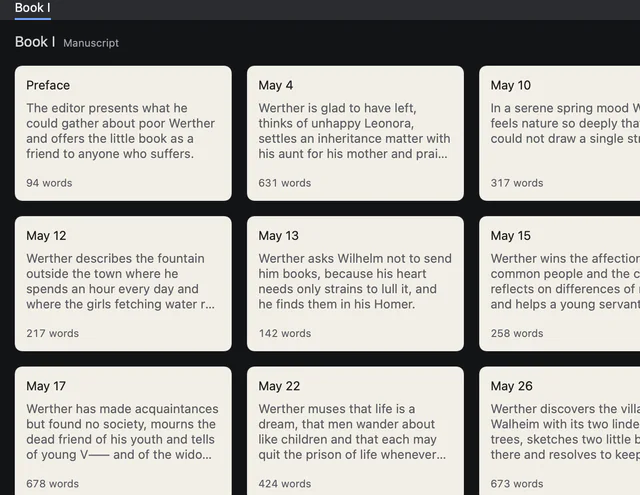
Index cards of the letters, each with title, synopsis and word count
Index cards of the letters, each with title, synopsis and word count

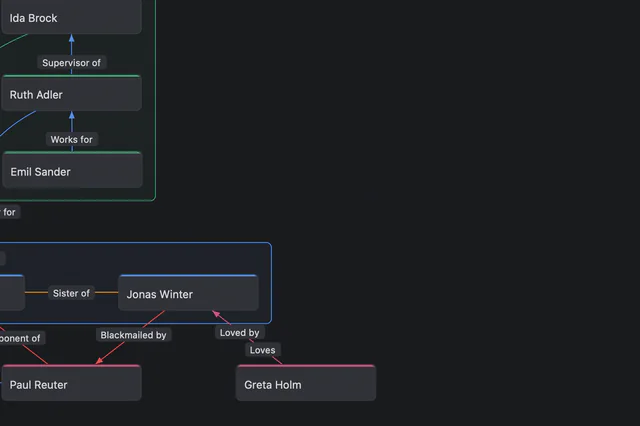
Close-up of the relationship map: grouped characters and labelled connections

Close-up of the relationship map: grouped characters and labelled connections

Where Scrivener does better.

Scrivener and Goethe Write are both available today. Scrivener runs on Windows as well as the Mac, and it has full apps for iPhone and iPad that sync through Dropbox. The Goethe Write app for iPhone and iPad is free but a companion: it writes screenplays and plain texts in your projects, and sync through Goethe Cloud is still to come.

Scrivener also exports to more formats today, Kindle and OpenOffice among them, and many writers have used it for years, with a large community sharing templates and advice. If those things matter most to you, stay with Scrivener. Facts about Scrivener come from literatureandlatte.com, checked on 12 November 2026.

Who should switch, and who should stay.

  • Switch to Goethe WriteIf you work on a Mac, want to see real pages while you write, write screenplays as well as prose, or want an editor or co-author inside the project.
  • Stay with ScrivenerIf you need Windows, full apps on iPhone and iPad with sync today, or export formats such as Kindle that Goethe Write does not offer yet.
  • Try both side by sideThe import does not change your .scriv project. Bring a copy into Goethe Write during the 14 free days and decide with your own book.

For novelists Writing a book on the Mac Buying once instead of renting

Questions about switching from Scrivener.

Can Goethe Write open Scrivener projects?

Yes. File ▸ Import ▸ Scrivener Project… reads projects from Scrivener 3 and Scrivener 2 and builds a new Goethe Write project. A project from Scrivener 1 you open and save once in Scrivener 3 first.

What comes along from Scrivener, and what stays behind?

The binder with titles, synopses, notes, labels and status; texts with formatting and footnotes; custom fields, keywords, manual collections, snapshots, targets and the deadline; PDFs, pictures and web archives as files. Saved searches stay behind.

Does the import change my Scrivener project?

No. Goethe Write builds a new project of its own. Your .scriv project stays as it was, and you can keep working in it.

Is there anything like Scrivener’s compile?

Export takes its place. File ▸ Export… offers ready-made output formats – Standard Manuscript, Paperback, E-Book, Word, PDF, Markdown and Rich Text – with a live preview before anything is saved.

Does Goethe Write run on Windows?

No. Goethe Write is made for the Mac, with a free app for iPhone and iPad. If you need Windows, Scrivener is the better choice.

What does switching cost?

Goethe Write for Mac is a one-time purchase of US$79.99 after 14 free days. Goethe Cloud, for working together, read links and the Goethe assistant, is optional at US$4.99 a month or US$49.99 a year. The iPhone and iPad app is free.

Bring one book over and see.

Import a copy of your Scrivener project during 14 free days on the Mac, then buy once for US$79.99 – or not. Studios and publishers equip writers with Teams seats at US$29.99 per Mac, from five seats.

Download on the Mac App StoreMac · 14 days freeDownload on the App StoreiPhone and iPad · free

Pricing and free trialAll featuresGoethe Write for Teams