A handbook in the app and Goethe’s works as samples – learn by opening a real book
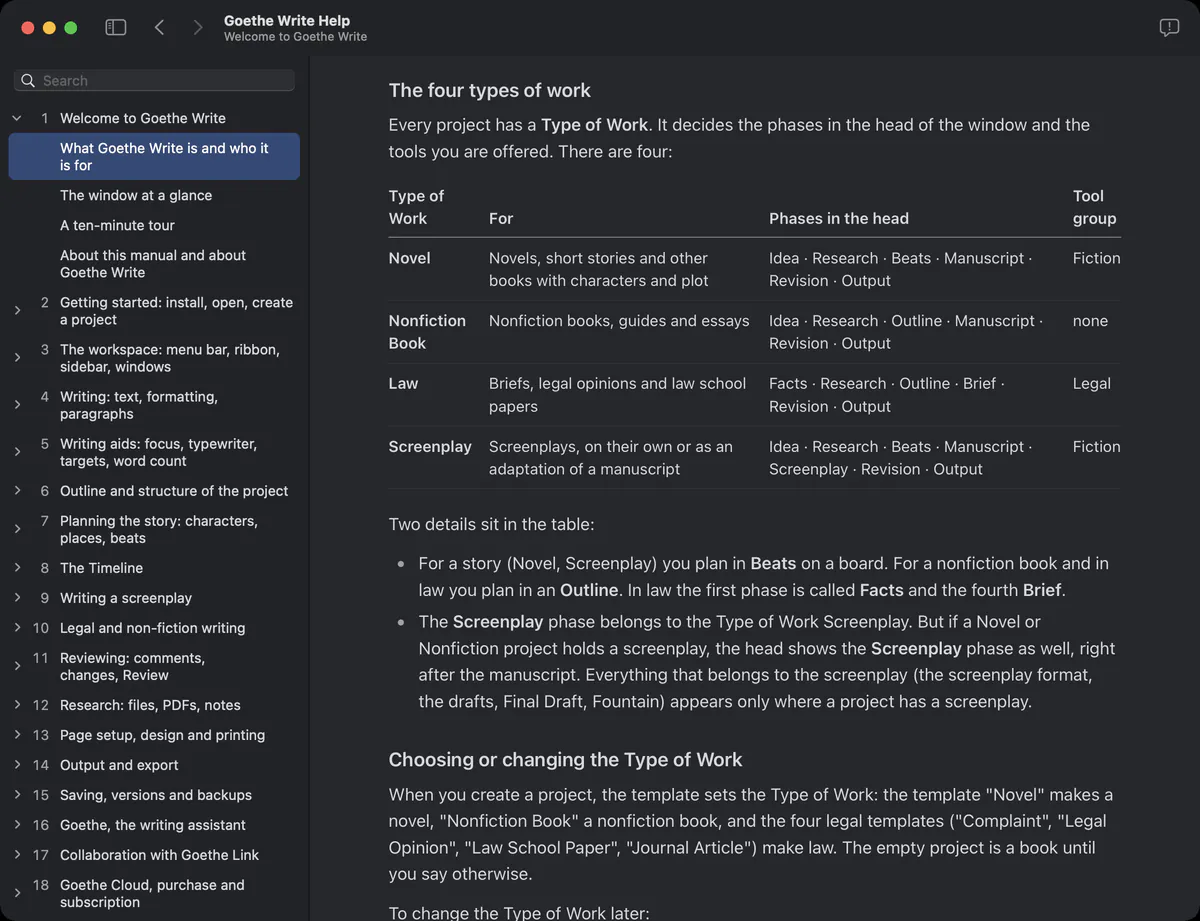
Professional software should explain itself. Goethe Write comes with a full handbook inside the app and with Goethe’s own works as finished projects you can open, explore and take apart.


Powerful software you cannot find your way around is not powerful
The feature you need exists – you just don’t know what it’s called, where it is, or that it exists at all.
A writing app with a ribbon, a timeline, a relationship map and an AI assistant has a lot to discover. Video tutorials age with every update, forum answers contradict each other, and a manual on a website is one more window.
How Goethe Write solves it
- Choose Help ▸ Goethe Write Help or press ⌘?. The handbook opens in a window of its own beside your project.
- The chapters stand on the left in groups: getting started, writing, planning, kinds of work, revising, together, reference and practice.
- Search the whole handbook; the first hit opens with the word marked.
- Search Commands (⌃⌘K) finds every command of the ribbon and the menus by name and tells you where it lives.
A handbook written for writers
You want to know how to do it, and why it helps – not a list of buttons.
The handbook has 27 chapters, around 140,000 words in English, and every chapter follows the same pattern: what something is, why it helps, how to do it step by step with the exact menu paths, an example from writing practice, and what to avoid. The same handbook is on this website – in English, German, French and Spanish – so you can read it before you buy.
What is planned and not yet built is marked as Coming soon in every chapter, so you never search for something that isn’t there.
Goethe’s own works as sample projects
A blank project teaches you nothing. You want to see what a finished one looks like.
Under Help ▸ Samples lie Goethe’s own works, each as a complete project in its own type of work:
The samples
- Novel: The Sorrows of Young Werther – 106 letters and the editor’s narrative, with dates, characters and places, on pages and on the timeline.
- Stage play: Faust – the first part of the tragedy as a screenplay, with scenes in the navigator and on the timeline.
- Poems – a collection, one poem per text, set as a book.
- Travel book: Italian Journey – dated entries from Carlsbad to Rome, with the places as tracks on the timeline.
- Law: Positiones Juris – Goethe’s 56 legal theses of 1771 in their Latin original, as a legal text.
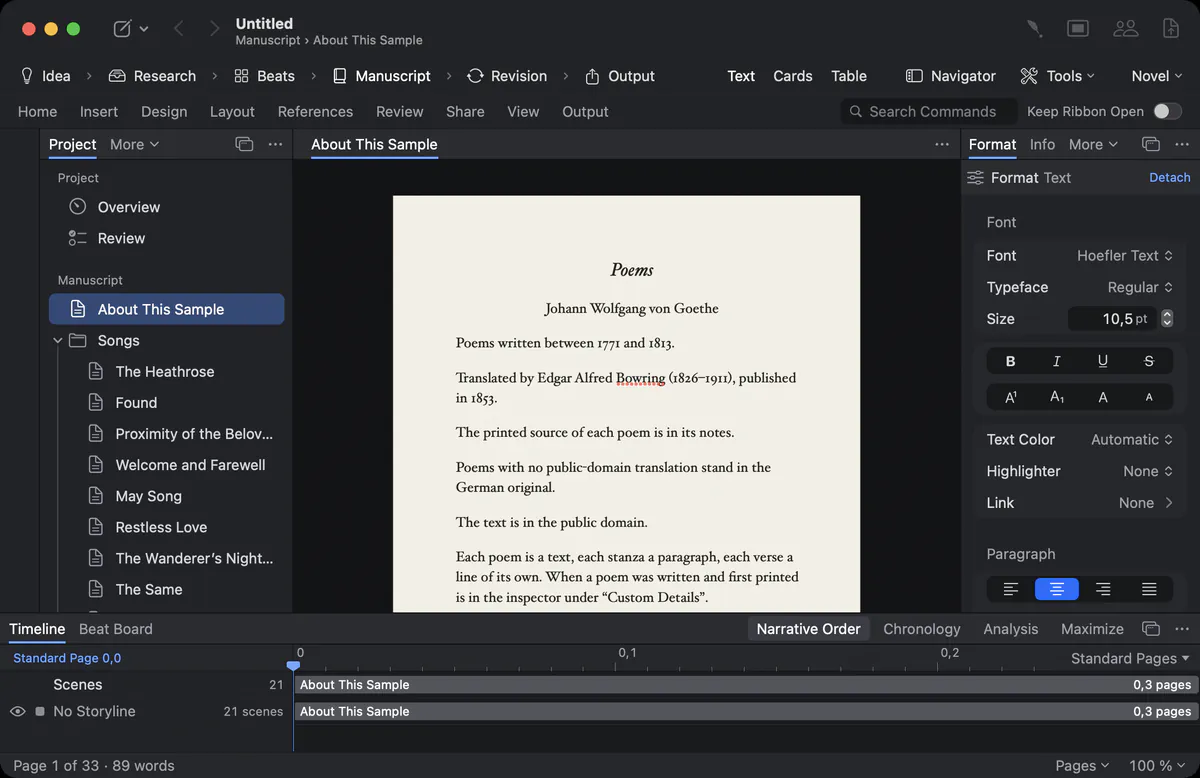
The samples come in English, German, French and Spanish where a public-domain translation exists, from historical editions named in each project. Every sample opens as a new project: write in it, rearrange it, break it – the next time you open a fresh one.
Help in the moment
Every button has a help text, and locked or unavailable commands say why in one sentence instead of doing nothing. Errors are explained in plain words with the next step. The Troubleshooting chapter covers what can go wrong, from a locked keychain to a pairing that does not match.
How every chapter is built
Manuals tell you which button exists. You want to know which one to press, and why.
Every chapter opens with what it covers and in which parts. Every function is explained in the same order: what it is, why it helps a writer, how to do it step by step with the exact menu paths and shortcuts, an example from writing practice, and a tip where something saves time. Shortcuts appear as keys, menu paths with ▸, and every chapter links to the chapters that go deeper. The command reference lists every command of the menus and the ribbon with its shortcut and place; the glossary explains every term from beat to watermark.
Templates to start from
A blank page is the hardest page.
File ▸ New Project… offers templates in two groups. Writing: Novel (three parts with chapters and guiding questions, plus sheets for main character, antagonist and setting), Nonfiction Book, Screenplay and an empty project. Law: Complaint, Legal Opinion, Law School Paper and Journal Article. The scaffolding inside the templates is written in German today; you write over it anyway. View Sample in the same window opens the samples.
Workflows from real projects
The chapter Workflows walks through whole projects from start to finish: a novel from the first idea to the manuscript for agents, a screenplay from beat board to production draft, a nonfiction book with sources, a brief with exhibits. It shows how the tools work together, not one at a time.
Questions about the handbook and samples
Is the handbook available offline?
Yes. The handbook is part of the app and opens with Help ▸ Goethe Write Help without a connection. It is also on this website.
In which languages is the handbook?
In English, German, French and Spanish. The app’s interface is in English and German.
Are the sample texts free to use?
The samples are Goethe’s own works in public-domain editions and translations; each project names its source.
Does the handbook mark features that are not built yet?
Yes. Planned functions stand in Coming soon notes in each chapter, so you never search for something that is not there.
Can I search all chapters at once?
Yes. The search in the help window covers all 27 chapters and opens the first hit with the word marked.
Can I change the sample projects?
Yes. Each sample opens as a new project. Write in it, rearrange it, delete things – the next time you open the sample, it is fresh.
In the handbook
- Welcome to Goethe WriteWhat Goethe Write is and who it is for, the four types of work, the window at a glance and a ten-minute tour from a new project to the first export.
- Getting started: open and create a projectCreate a project from a template, open, save, duplicate and rename it, try the sample projects and set up type of work, tools, custom details and targets.
- Workflows from writing practiceWorkflows from practice: from idea to novel manuscript, from novel to screenplay, an editing round, a legal brief and writing a screenplay together.
Open a real book and look inside.
Try Goethe Write free for 14 days on your Mac, or start reading the handbook now.
Try it free for 14 days on your MacOpen the handbookSee pricing